ChartDeck PRO
7-in-1 indicator panel for MT4 and MT5
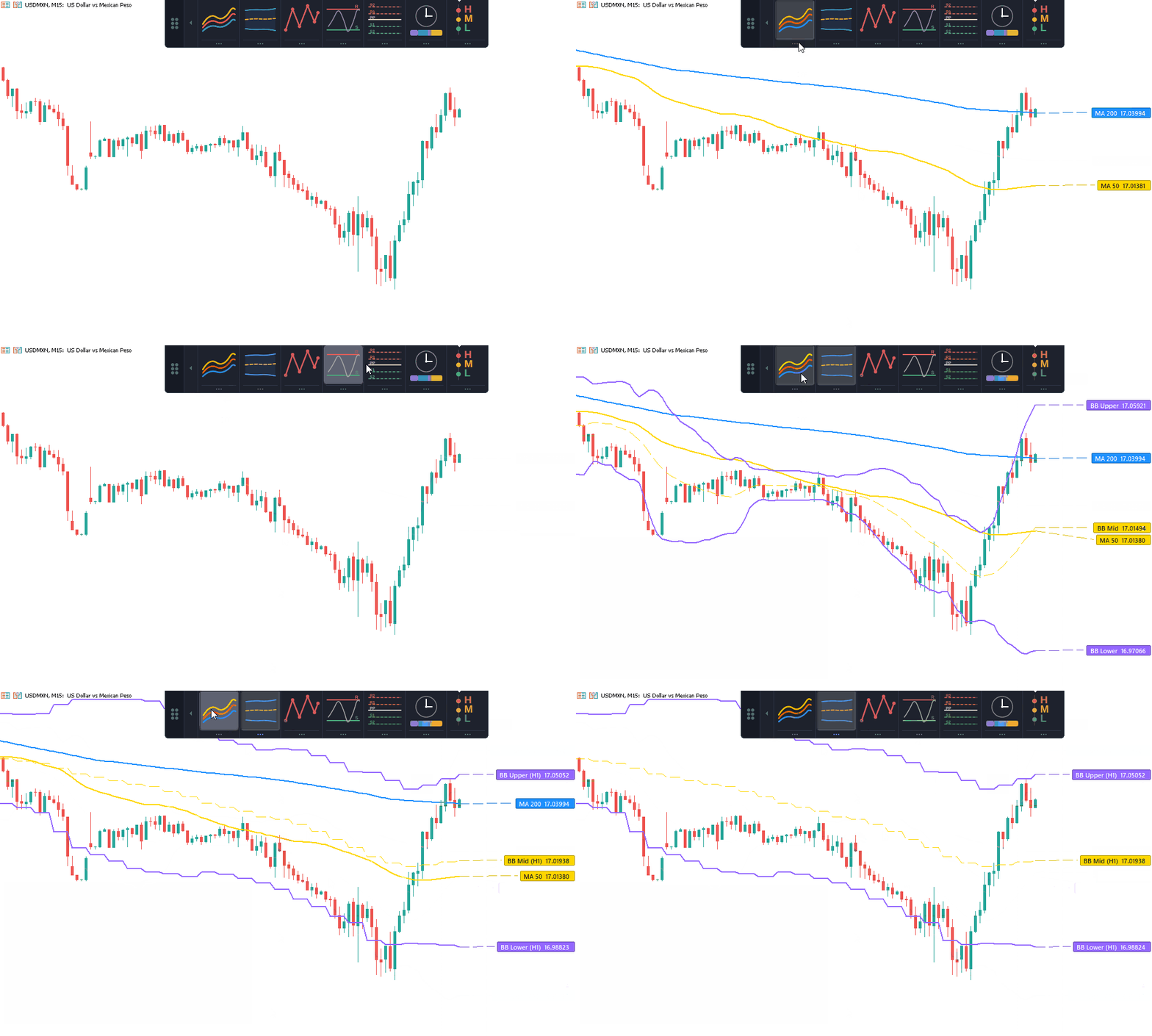
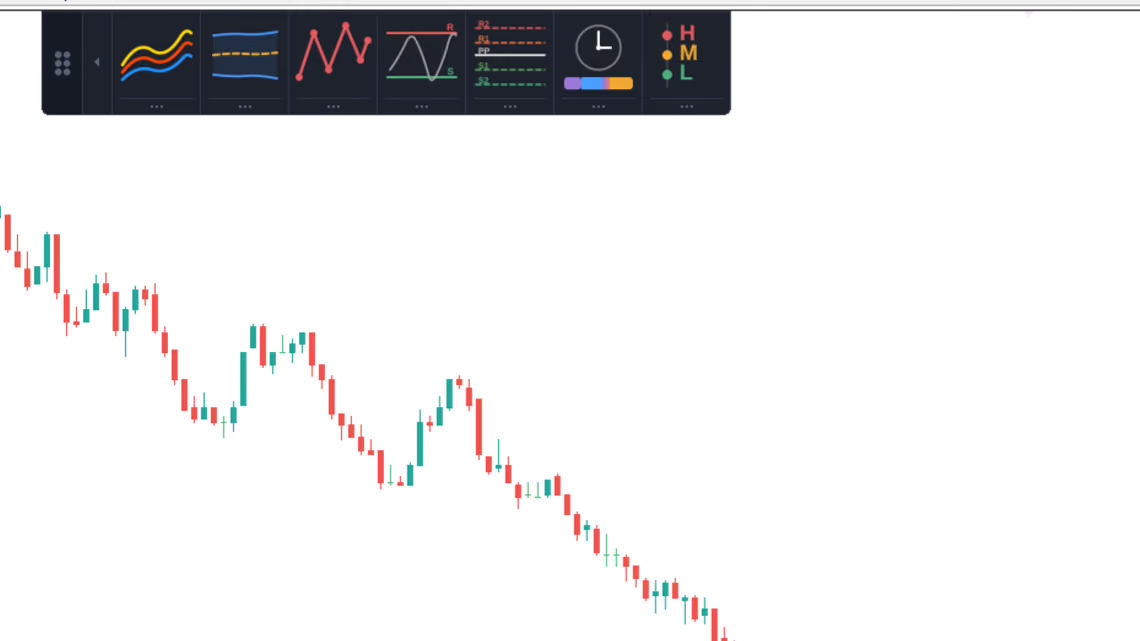
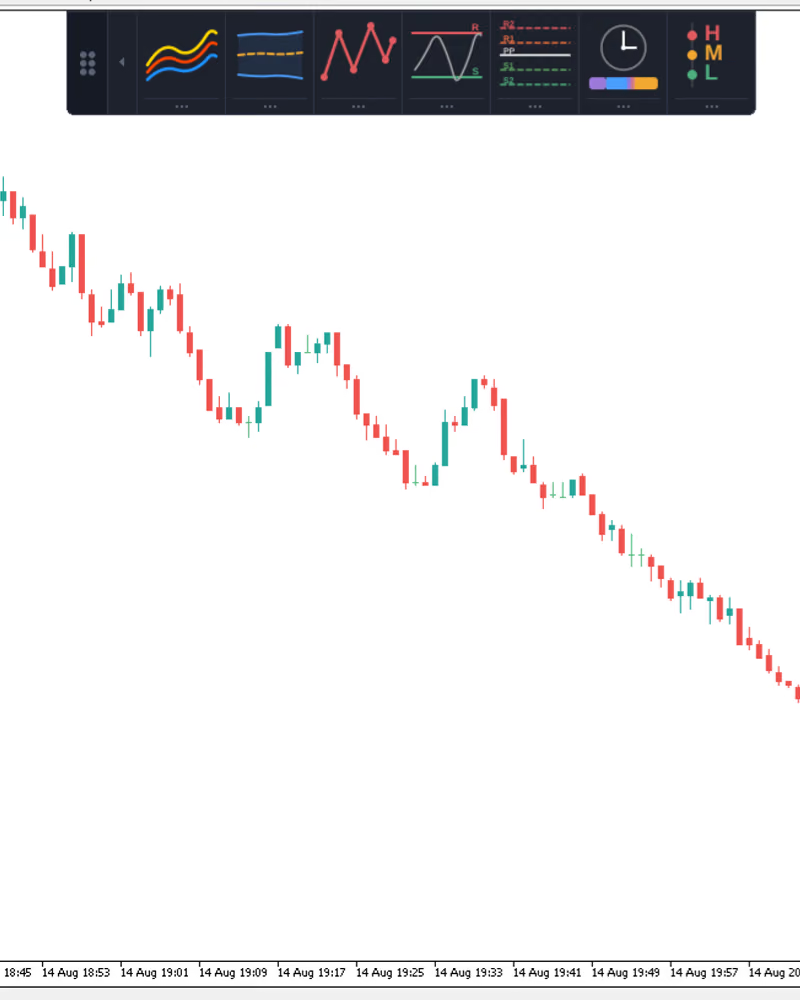
Seven MT4 or MT5 chart tools in one dockable icon panel.
Click a tool's icon to switch it on or off.
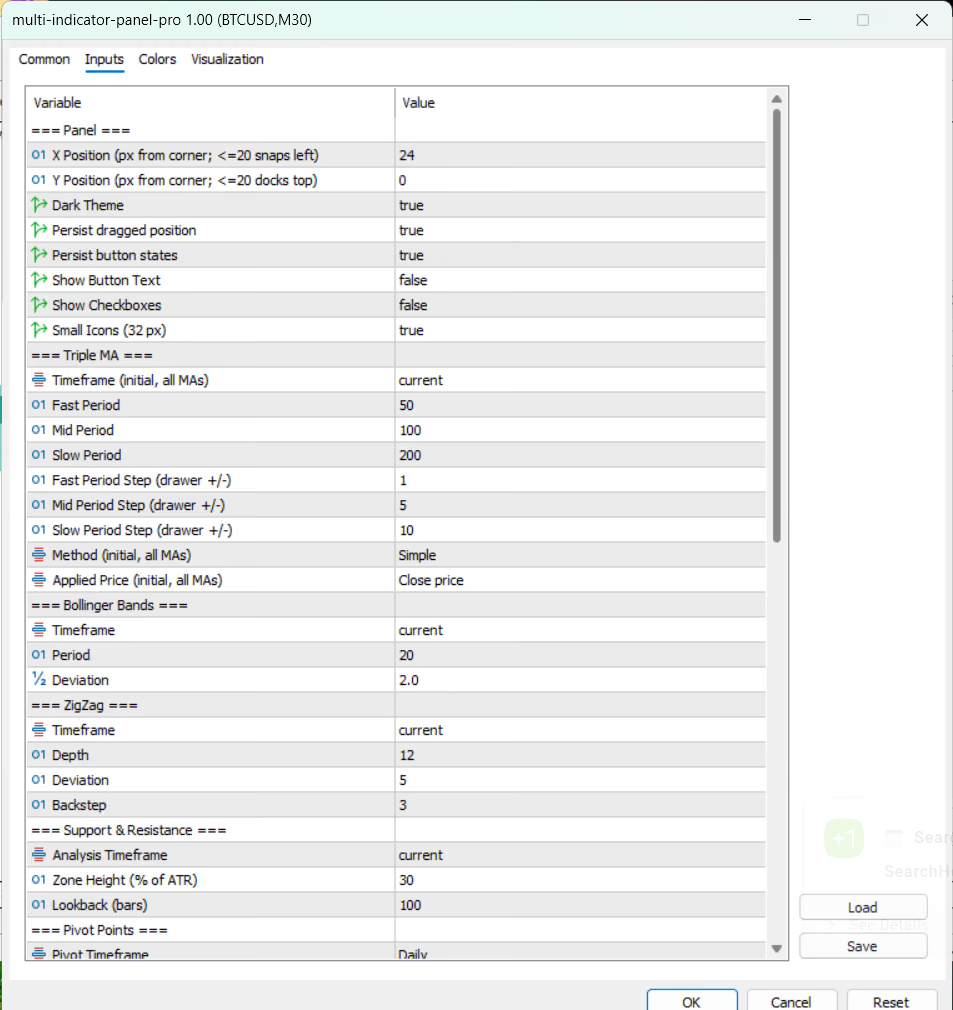
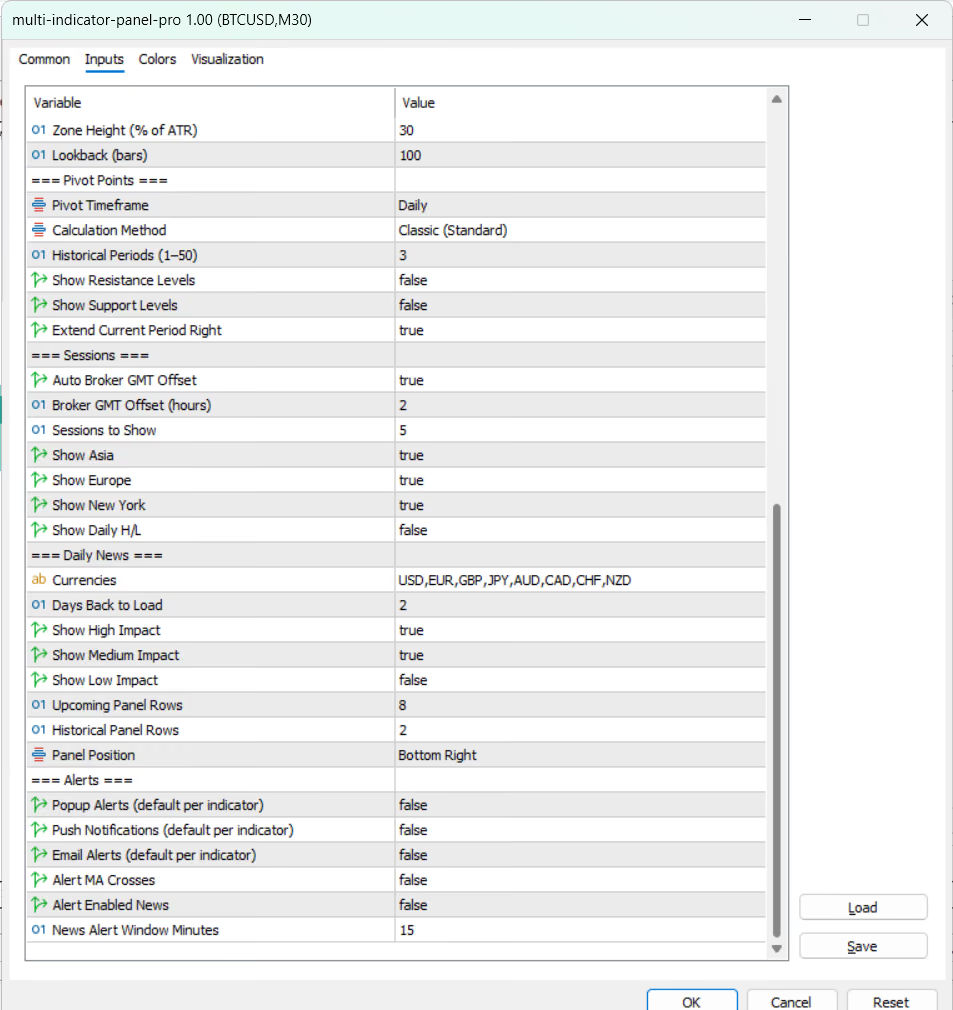
Tune every parameter in an on-chart settings drawer, no Inputs dialog required.
What each tool puts on the chart
Every tool keeps its own timeframe, its own parameters, and its own alert delivery settings, so a multi-timeframe layout never needs a second indicator. Only the tools switched on in the panel are calculated and drawn.
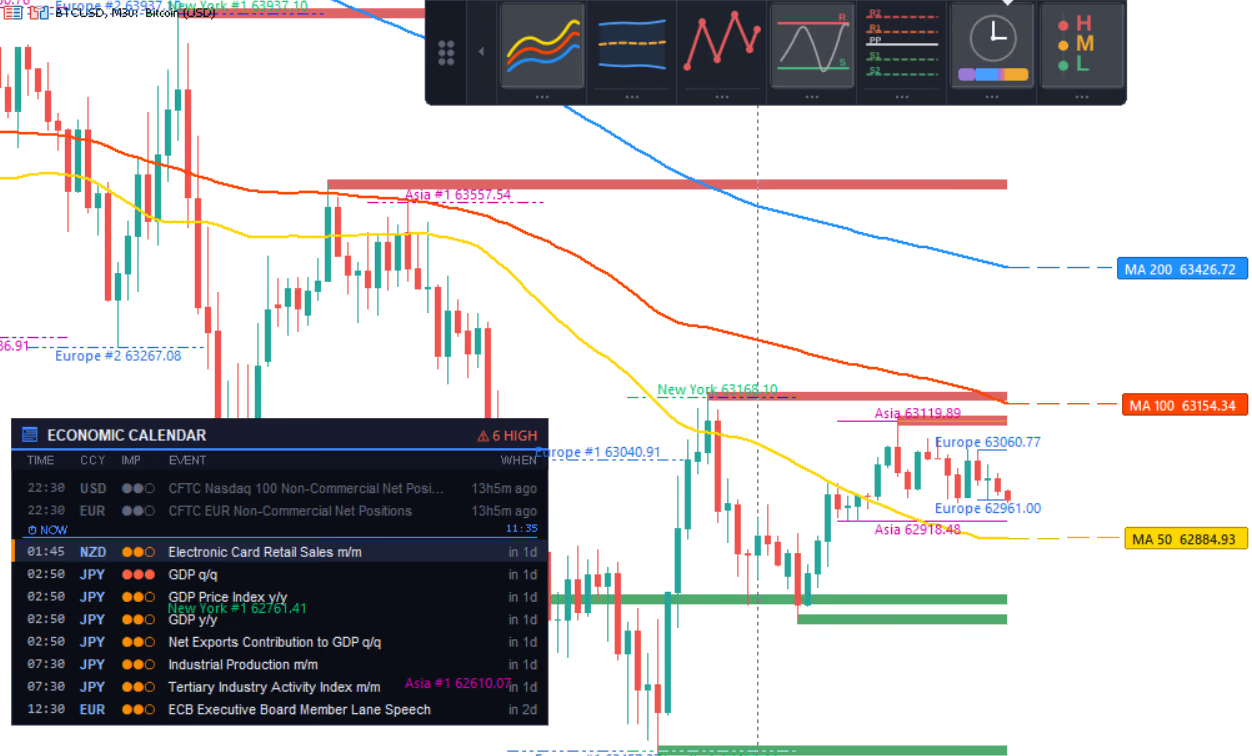
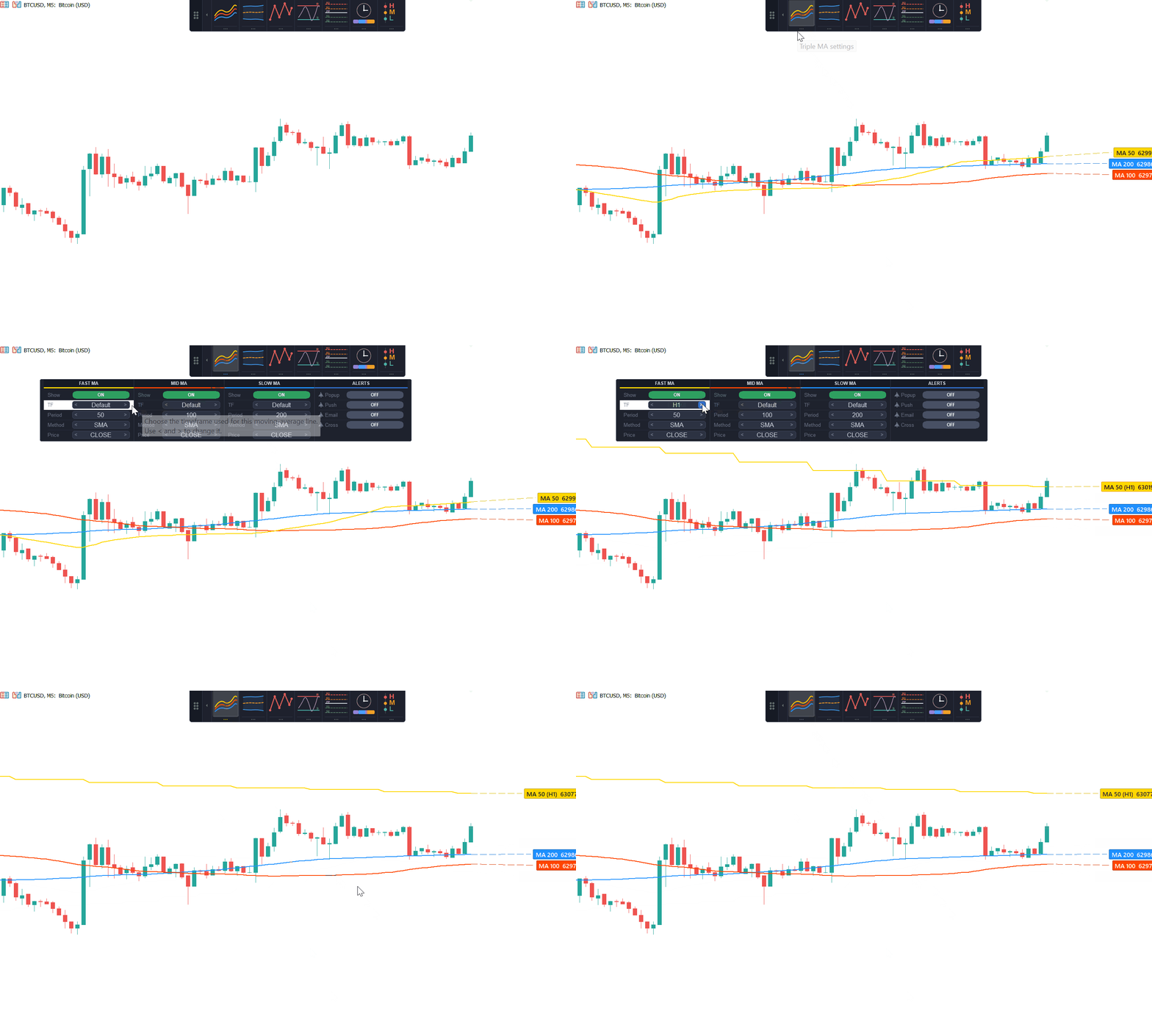 Triple MAThree moving averages, each with its own period, timeframe, method, and applied price. Any line can be hidden while the rest stay active, and cross alerts follow the visible lines across all three pairs.
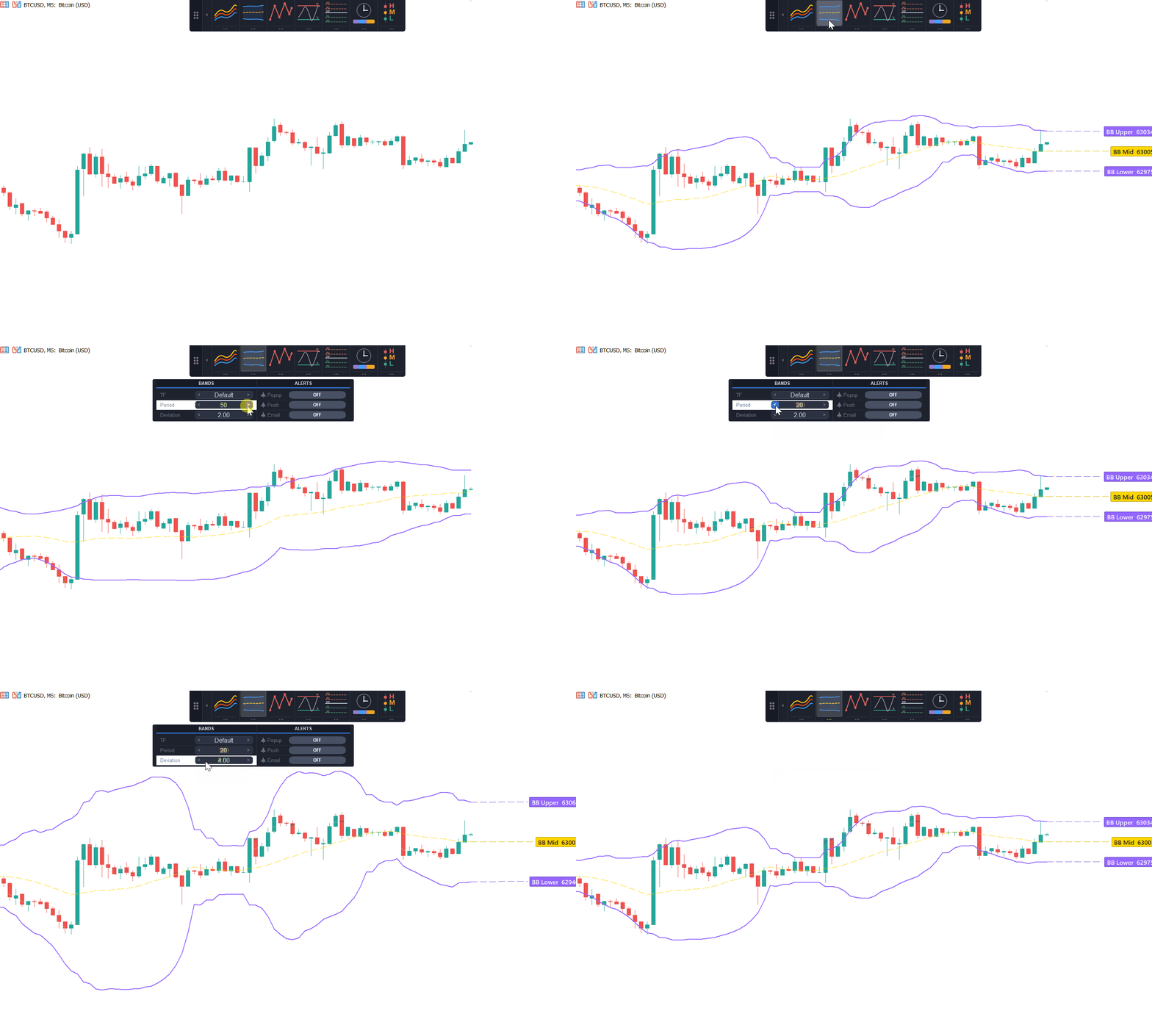 Bollinger BandsUpper, middle, and lower band with independent period, deviation, and timeframe controls, including a timeframe higher than the chart, plus alerts the moment price touches either band.
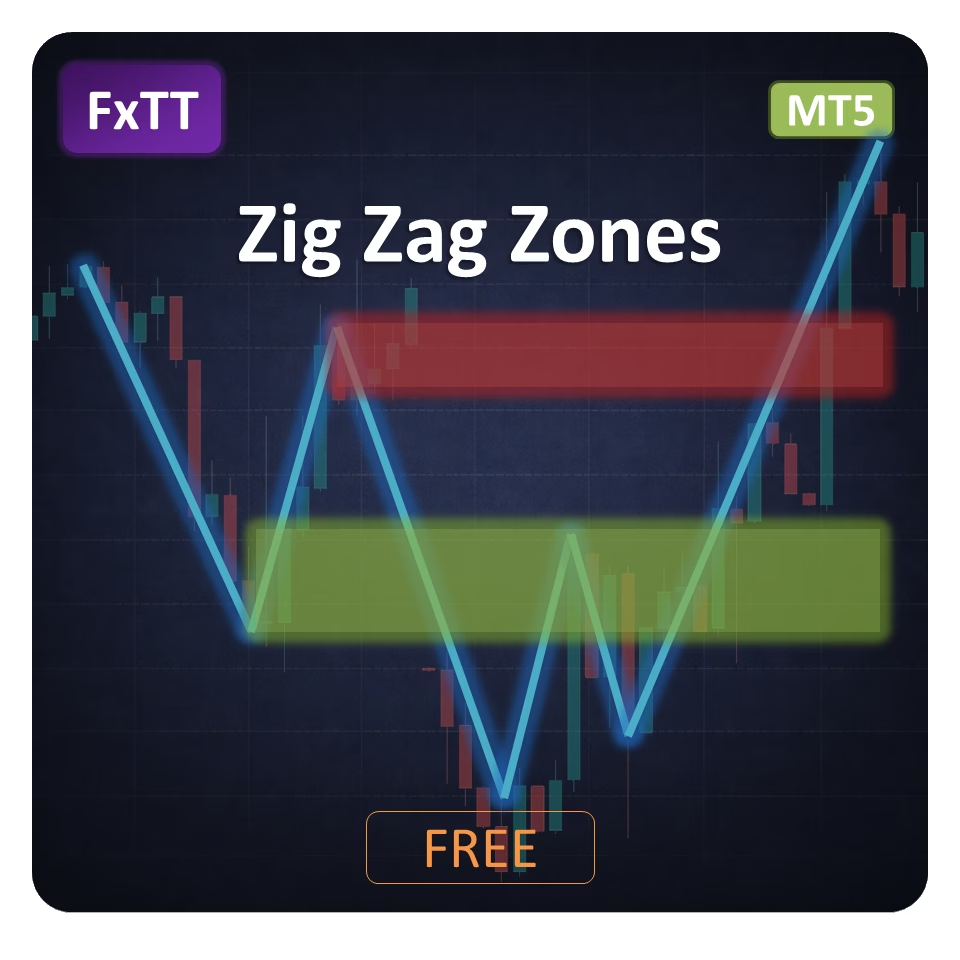
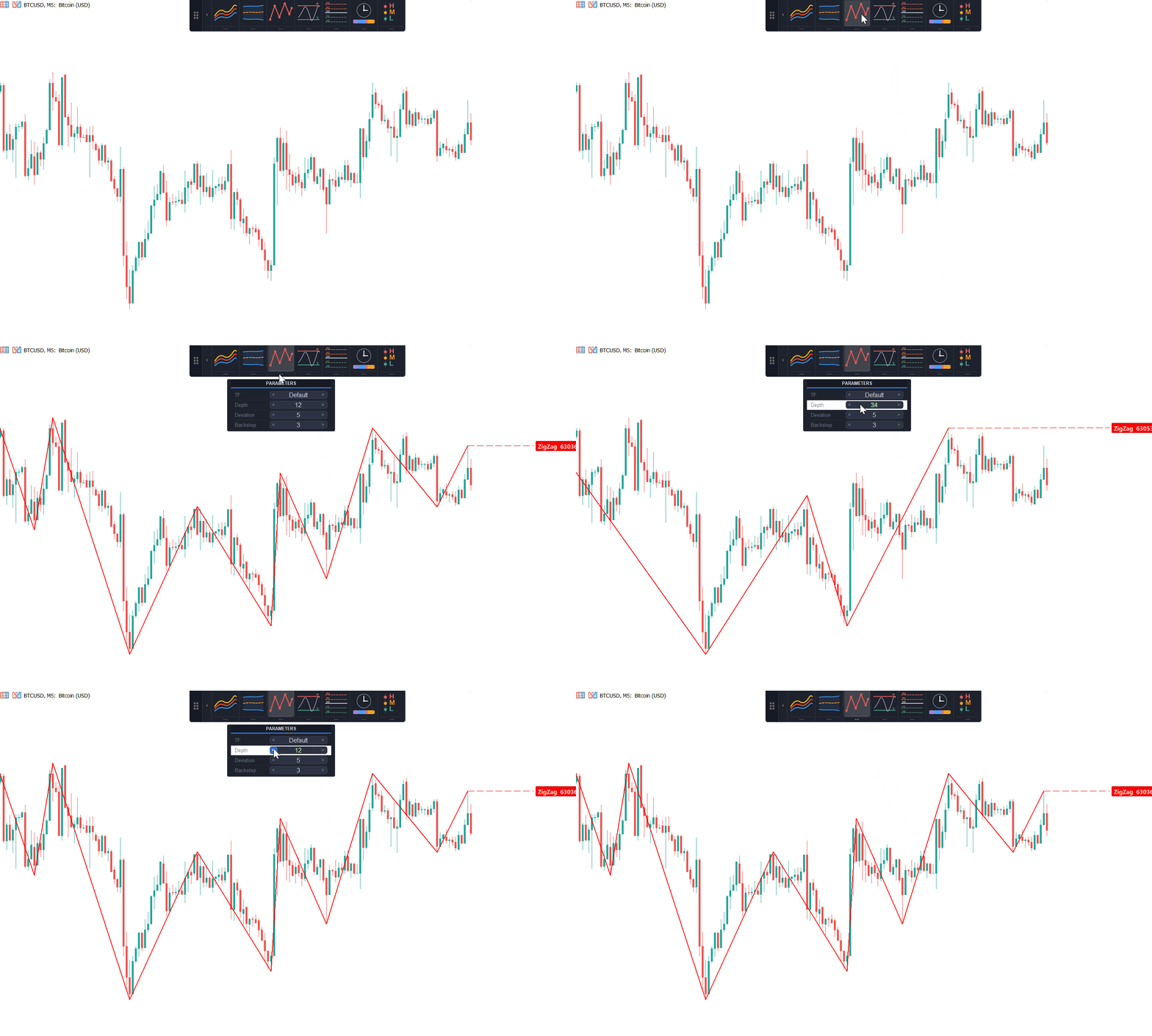 ZigZagSwing structure calculated from depth, deviation, and backstep, with no extra indicator file and no iCustom call required. Completed legs never repaint; only the current, still-forming leg can still move.
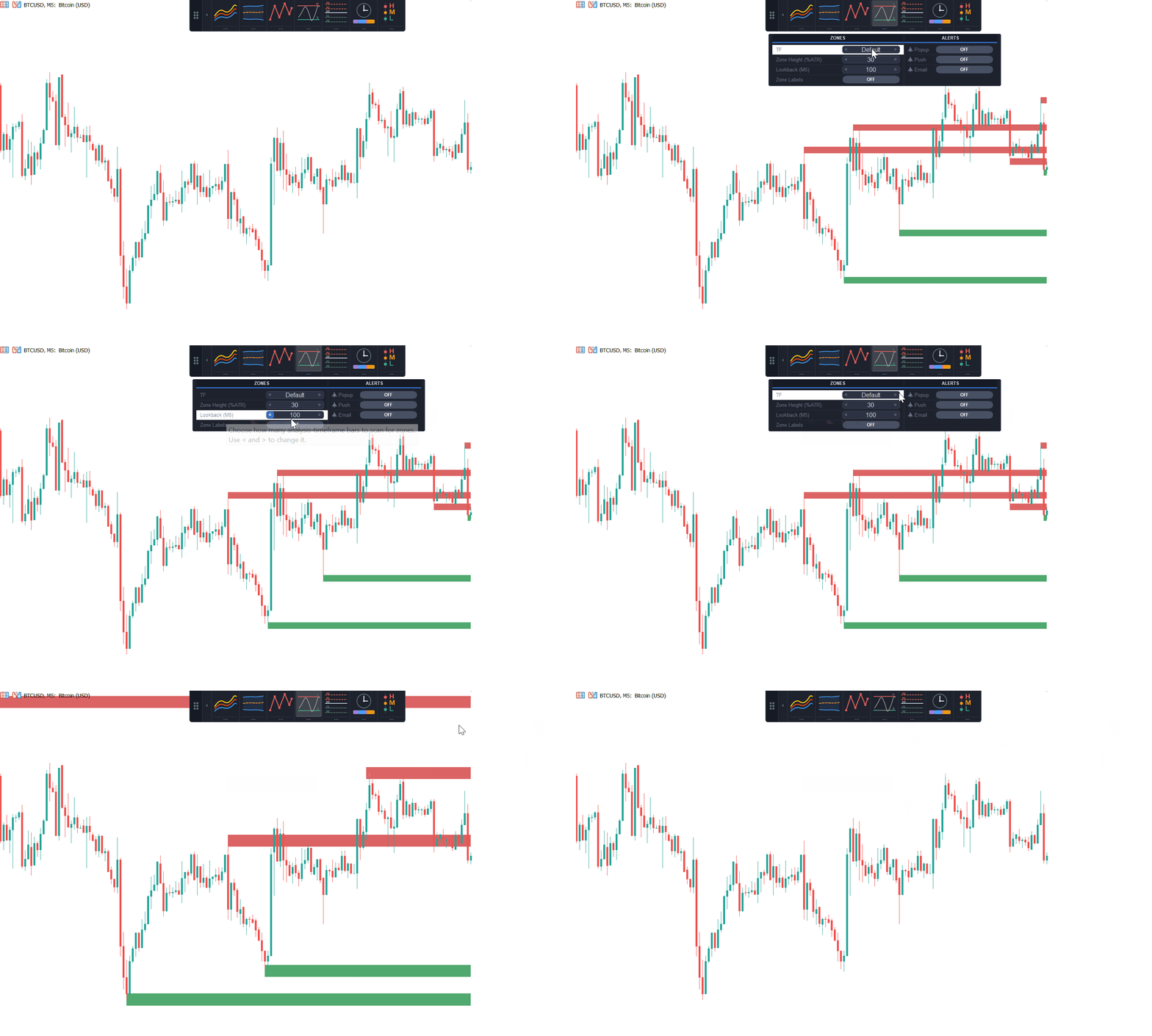 Support & ResistanceZigZag-derived, ATR-scaled zones so one height setting fits both low- and high-volatility symbols, ranked by number of tests, with lookback measured in bars of the analysis timeframe and optional zone labels.
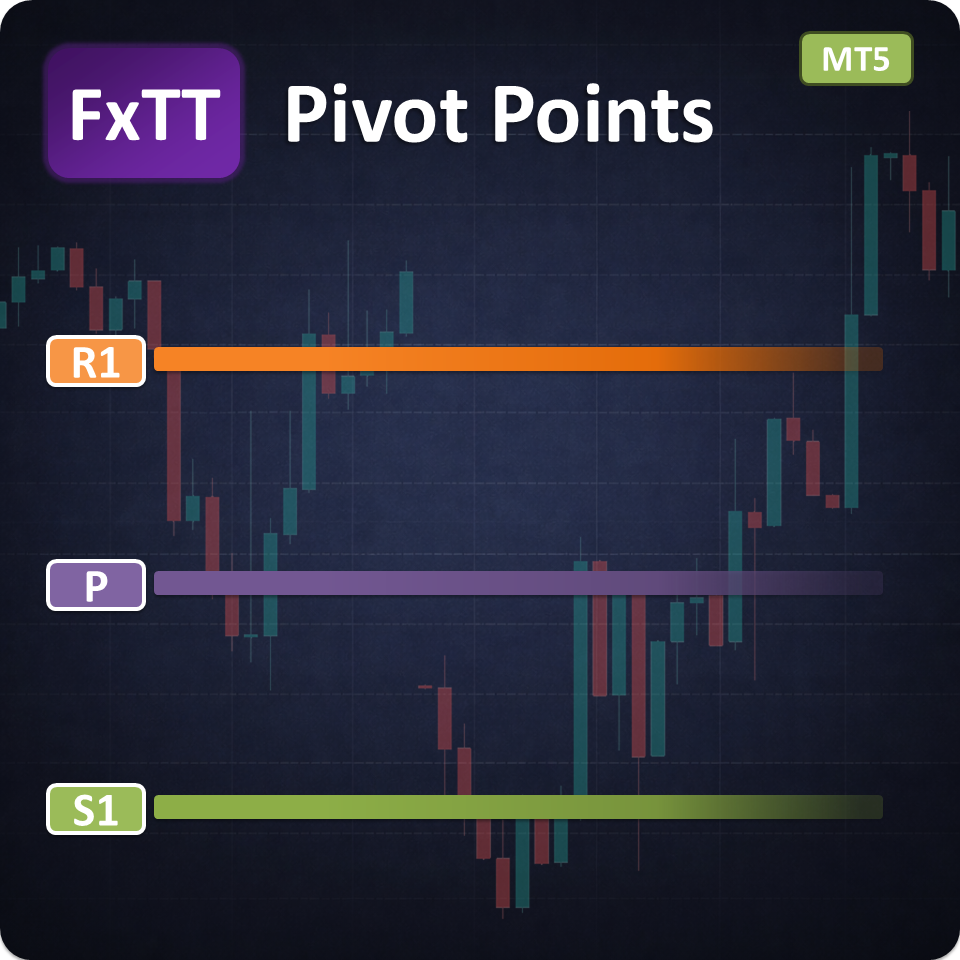
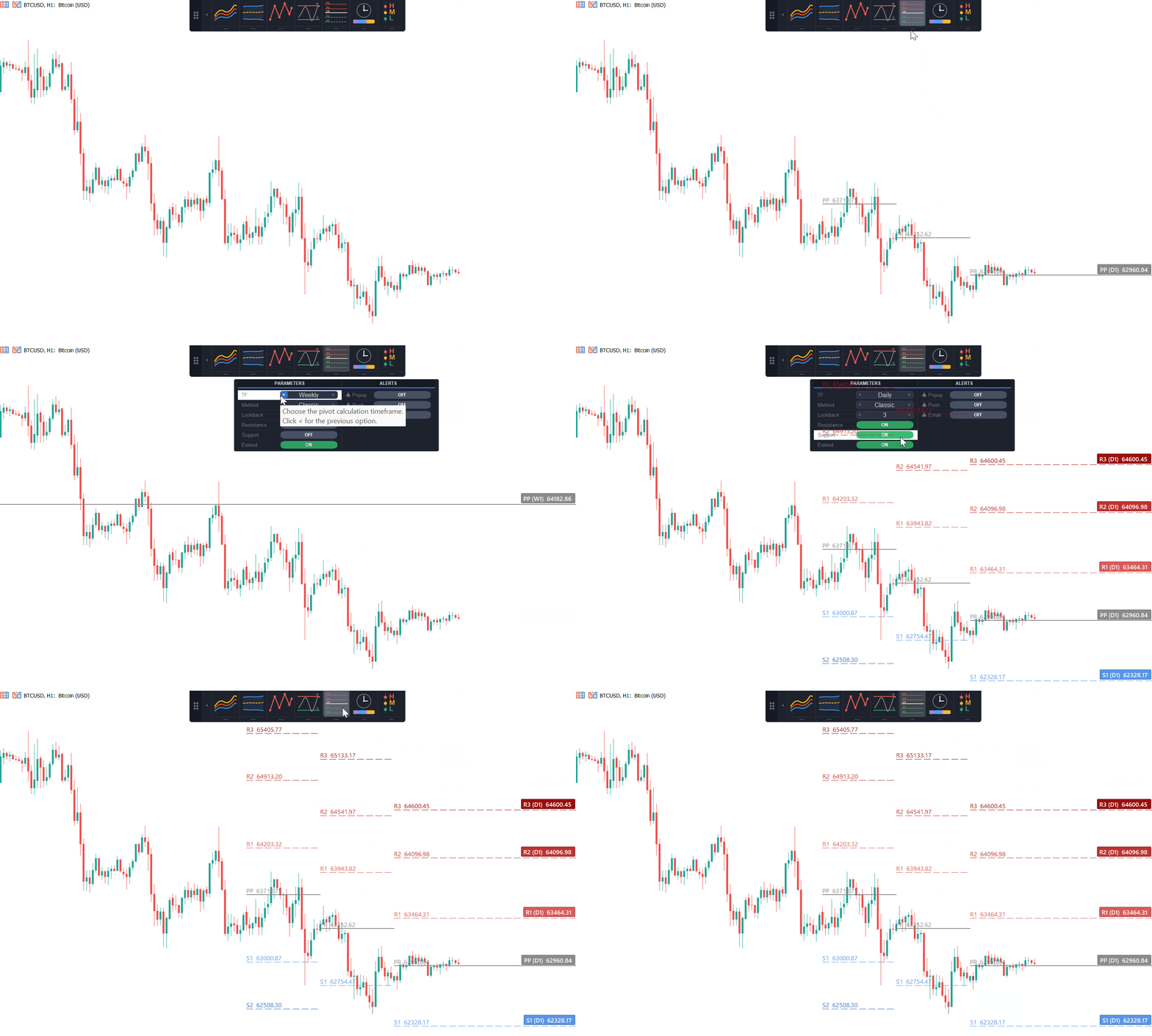 Pivot PointsDaily, weekly, or monthly pivots in Classic, Fibonacci, Camarilla, Woodie, or DeMark form, with up to 50 historical periods, independent support/resistance visibility, and current-period levels extendable to the right edge.
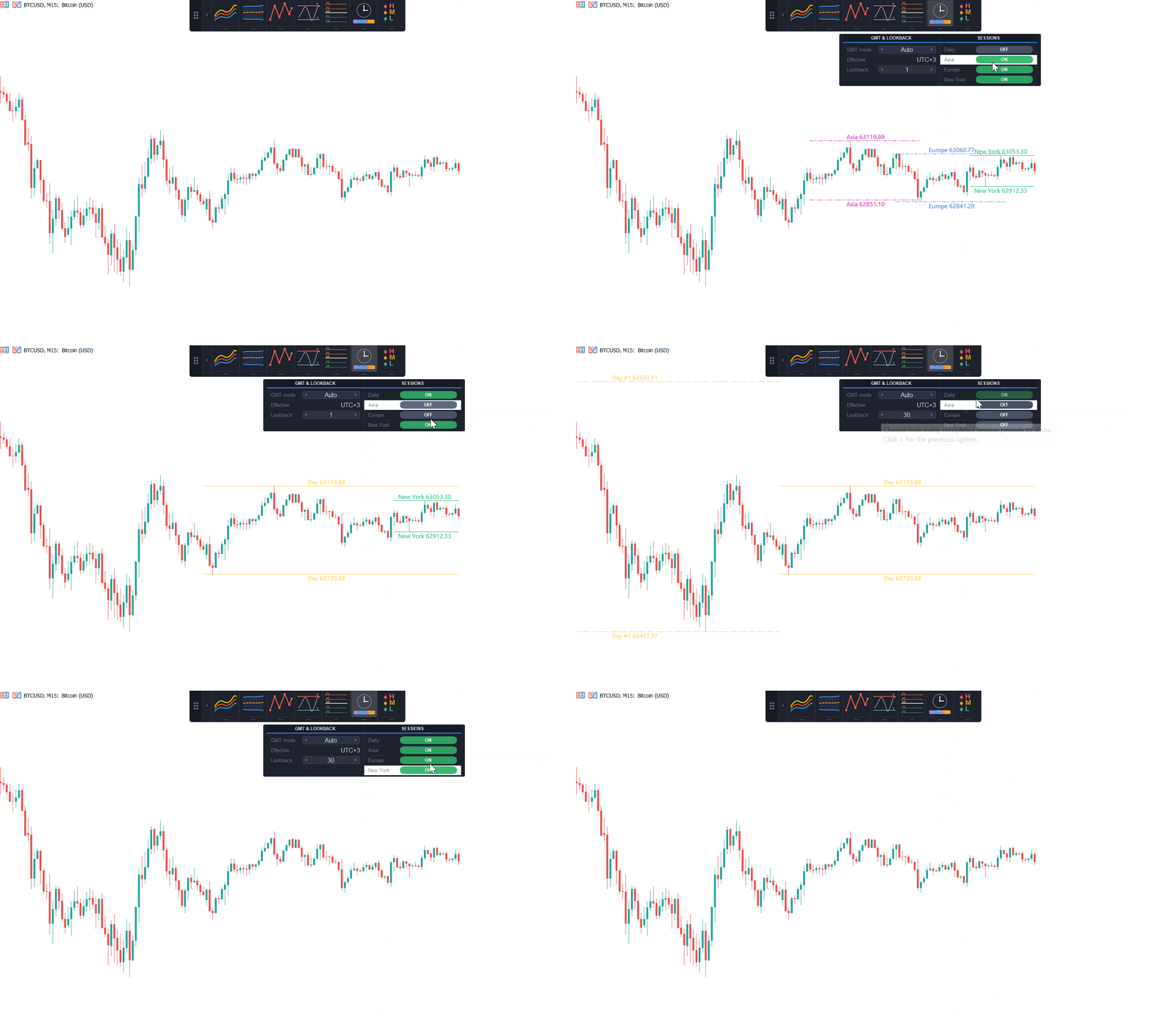 SessionsAsia, Europe, and New York session highs and lows with automatic or manual broker-GMT offset, a configurable count of past sessions to display, and an optional daily high and low.
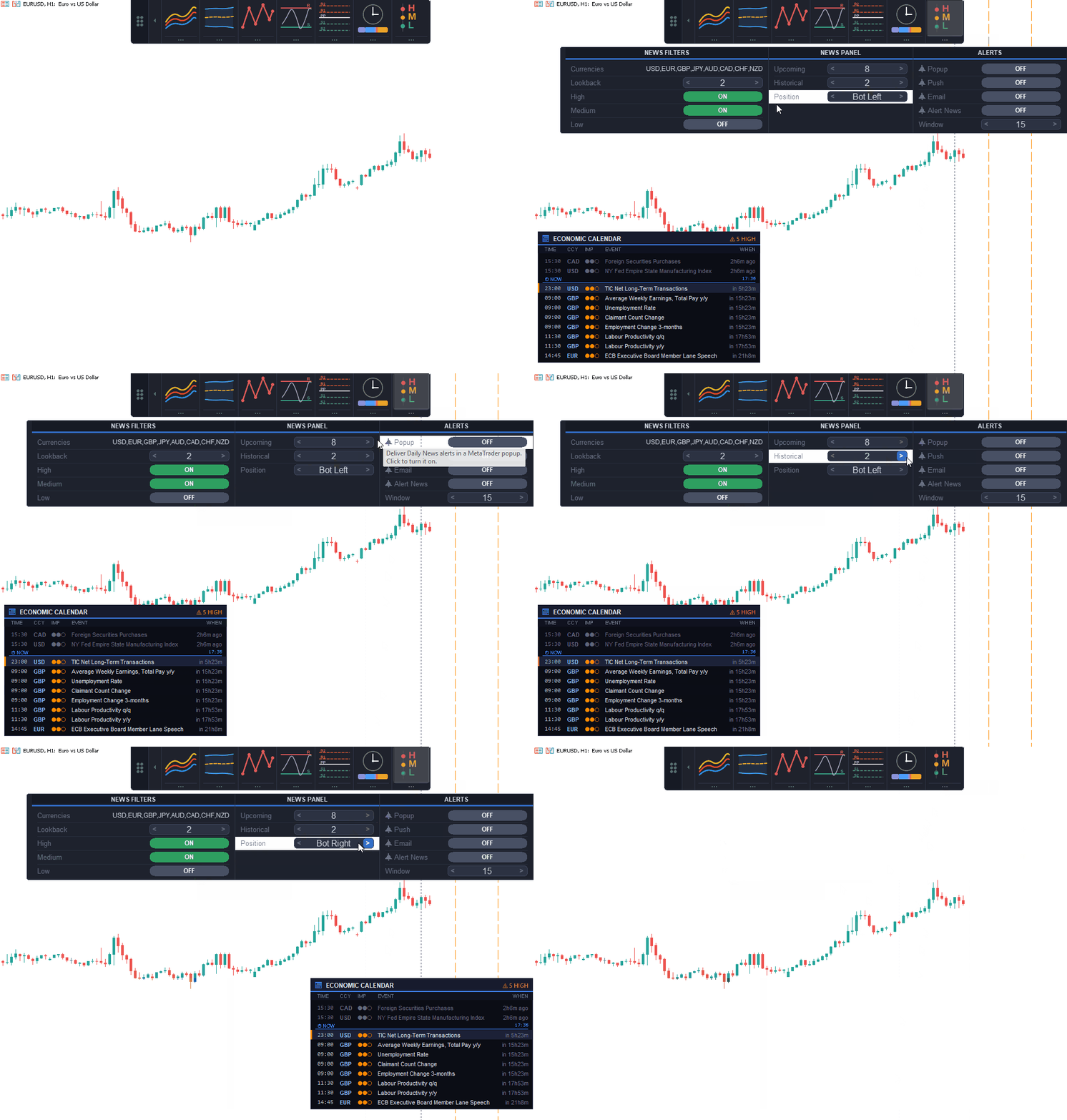 Daily NewsUpcoming and historical economic events as vertical lines and an on-chart panel, filtered by currency and impact. MT5 reads its built-in calendar. MT4 reads a local feed maintained by the included FxTT-NewsFeed companion EA.
How It Works
Click the tool. Tune it in the drawer.
Attach
Add the selected ChartDeck PRO edition to an MT4 or MT5 chart. The icon panel appears ready to dock to any edge.
Click a tool
Switch a tool on with one click on its icon. Only the tools switched on are calculated and drawn.
Open the drawer
Open the settings strip below the icon to tune timeframe, parameters, and alerts on the chart itself.
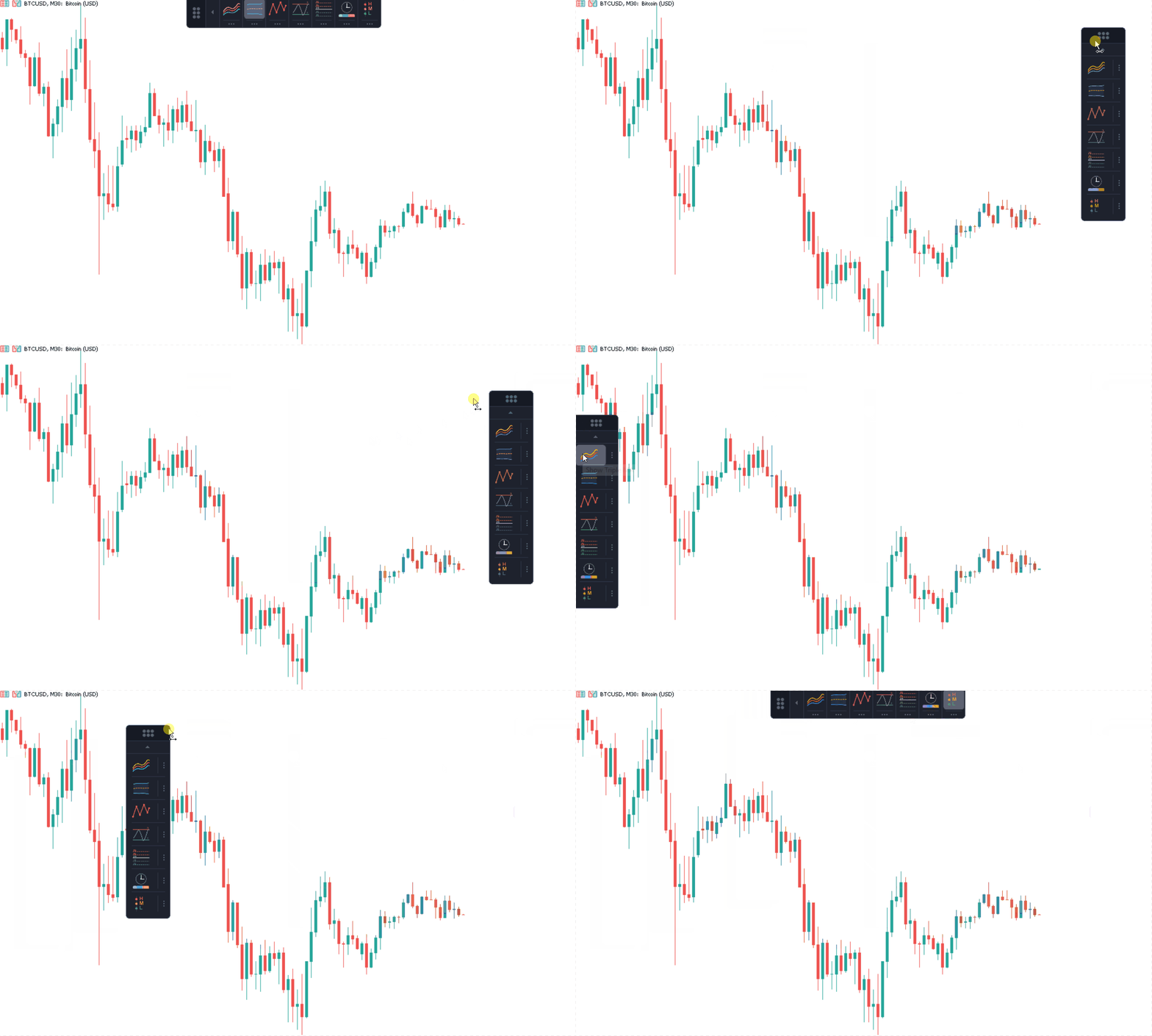
Dock it, tune it, then get out of the way
Attach ChartDeck PRO once, click a tool's icon to draw it, and open its settings strip to tune timeframe, periods, and display options with the arrow and toggle controls. Dock the panel to whichever chart edge keeps it clear of price action. Use Triple MA and Pivot Points to frame direction and location, Bollinger Bands and Support & Resistance for volatility and structure, and Sessions and Daily News before an active market window. Arm the alerts you need from each tool's own Alerts section, then collapse the panel to a thin strip once configuration is complete. Save the chart as a template. The exact same setup, including panel position, active tools, and every parameter, travels to the next chart in one step.
Built for traders who already run seven indicators
ChartDeck PRO suits discretionary MT4 and MT5 traders replacing separate indicators and properties dialogs with one panel. Every tool keeps its own timeframe, so higher-timeframe bands or pivots can run on an intraday chart without loading another indicator. Only enabled tools calculate.
Key Features
Remembers your workspace
Chart persistence stores panel position, docking edge, the tools left switched on, and every drawer parameter. Each value is checked before use and falls back to its input default when it does not apply to the chart.
Built to stay light
Chart updates are incremental, and a switched-off tool costs nothing. No DLL or external library is required. On MT4, ChartDeck only reads the local Daily News file; the included companion EA makes the anonymous calendar request.
Runs on any symbol or timeframe
Forex, metals, indices, and commodities are all supported. Moving averages, bands, ZigZag, S/R, and pivots work on every timeframe; Sessions applies to intraday charts, since one D1 candle already spans a full trading day.
Independent per chart
Each chart instance keeps its own configuration. Save a chart as a template to copy a full setup, including panel position, active tools, and every parameter, to another chart in one step.
Screenshots
Write a Review
Sign in to receive a Verified Purchase badge if you own this product.
Frequently Asked Questions
- No. It draws standard analysis tools and reports the events you enable through alerts.
- One. All seven tools run inside a single ChartDeck PRO instance, with a single set of chart buffers.
- Yes. Only the tools switched on in the panel are calculated and drawn. A tool that is off consumes nothing and leaves no objects on the chart.
- Yes. Every tool has its own timeframe field, which can be set to any period at or above the chart period.
- Completed values do not change. The current ZigZag leg can still move while its forming bar develops, as with every swing-based method.
- Intraday charts, where session high and low levels are separated on the time axis. One D1 candle already spans a full trading day, so Sessions does not apply above that.
- MT5 reads MetaTrader 5's built-in economic calendar. MT4 reads
Files/FXTT/news_calendar.tsv, which the included FxTT-NewsFeed EA maintains from the external FxTT calendar feed. - No. Each chart keeps its own panel position, docking edge, active tools, and parameters. Save a chart template to reuse a configuration on another chart.
- With persistence enabled, ChartDeck PRO restores panel position, docking edge, the tools left switched on, and every parameter changed in the drawer. Each value is checked before use and falls back to its input default when it does not apply to the chart.
- Yes. Choose the package for your platform. The MT4 ZIP contains
.ex4binaries and is not an MT5 package. It includes ChartDeck-PRO, the FxTT-NewsFeed companion EA required by Daily News, and seven runtime icons. Keep the supplied folder structure. - MT4 indicators cannot use WebRequest, so ChartDeck does not fetch calendar data directly. Attach the included FxTT-NewsFeed EA to one separate, otherwise unused chart. MT4 permits only one EA per chart, so do not replace a trading EA. One News Feed EA serves every ChartDeck instance in that terminal; each separate terminal needs its own. The EA contains no trading logic. It makes its first request at startup, normally refreshes every 15 minutes, and will not poll faster than every five minutes. Current data requires internet access and the external feed.
- OK means the feed is fresh, and its age shows freshness.
No feed means FxTT-NewsFeed is not attached in this terminal.
Blocked means the exact WebRequest URL must be allowlisted before restarting the EA.
Stale means old data remains available; restart the EA and inspect its Experts log.
Bad file means ChartDeck cannot read the local feed; restart the EA and inspect its Experts log. A red dot on the Daily News rail icon marks any unhealthy state. The panel remains usable, but connection, allowlist, terminal, upstream, or feed failures can make calendar data stale. - Extract the newer release over the existing installation and preserve the folder layout. Do not delete
Files/FXTT/news_calendar.tsv; the companion EA maintains that terminal-local file. After replacing the indicator binary, detach and reattach ChartDeck so MT4 loads the new build. While attached, ChartDeck disables MT4's Chart on foreground setting so its controls stay above candles, then restores the prior setting when removed. - It makes an anonymous request to
https://calendar.forextradingtools.eu/. Its code adds no account ID, query parameters, trading logic, or WebRequest-based license check.
Setup Guide
MetaTrader 5 setup
Download and install
After purchase, in MetaTrader 5 open File → Open Data Folder, then MQL5 → Indicators. Copy the delivered ChartDeck-PRO .ex5 file into the Indicators folder. Restart MT5, or right-click Navigator and select Refresh.Attach to a chart
From Navigator → Indicators, drag ChartDeck PRO onto an MT5 chart. The icon panel appears ready to dock; choose a screen position, dark or light theme, icon size, and optional button text or checkboxes in the indicator inputs.Switch on your tools
Click a tool's icon to draw it on the chart. Only enabled tools are calculated. Open the settings strip below the icon to tune timeframe, periods, method, and display options with the arrow and toggle controls.Arm your alerts
Enable popup, push, or email delivery per tool from its drawer's Alerts section. MT5 push and email delivery must also be configured in the platform's own notification options.Dock, collapse, and save
Drag the panel to any chart edge and dock it there, or collapse it to a thin strip once configuration is complete. Save the chart as a template to reuse the same setup on other charts.
MetaTrader 4 setup
Open the MT4 data folder
In MT4, select File → Open Data Folder. Open theMQL4directory that containsIndicators,Experts, andFiles.Extract the complete MT4 ZIP
Extract the ZIP contents into thatMQL4directory and preserve its folder structure. Do not install onlyChartDeck-PRO.ex4; Daily News requires the included companion EA, and all seven runtime icons must remain underFiles/FXTT/ChartDeck-PRO/images/.Restart or refresh MT4
Restart MT4, or refresh the Navigator, so it discovers the indicator and companion EA.Attach the MT4 News Feed EA
AttachFxTT-NewsFeedto one dedicated, unused chart. Do not replace a trading EA because MT4 permits only one EA per chart. One running News Feed EA serves every ChartDeck instance in that terminal.Allow the exact WebRequest URL
In MT4, open Tools → Options → Expert Advisors, enable Allow WebRequest for listed URL, and add:https://calendar.forextradingtools.eu/Start ChartDeck PRO on MT4
After changing the allowlist, reinitialize or restartFxTT-NewsFeed. Then attachChartDeck-PROto the desired charts.Switch on tools and alerts
Click a tool's icon to draw it. Open its settings strip to tune timeframe, parameters, and display options. Configure popup, push, or email delivery in the tool's Alerts section and in MetaTrader's notification settings.
Changelog
MT4
- Added the Daily News row as the 7th row, fed by the FxTT-NewsFeed.mq4 companion EA because MQL4 has no economic-calendar API.
- Added upcoming and historical event views with per-severity filters and alerts.
- Added the read-only Feed diagnostic field, reporting companion/feed health as OK, Stale, No feed, Blocked, or Bad file.
- Disabled the chart's "Chart on foreground" mode while ChartDeck is attached so the sidebar, drawers, controls, and news panel stay above candles; the user's setting is restored when the indicator is removed.
MT5
- First public release: seven tools in one dockable icon panel: Triple MA, Bollinger Bands, ZigZag, Support & Resistance, Pivot Points, Sessions, and Daily News.
- The panel drags to any chart edge, docks, and collapses to a thin strip.
- Each tool has an on-chart settings drawer with steppers, toggles, and tooltips, so routine changes do not require reopening the indicator Inputs dialog.
- Popup, push, and email alerts can be configured per tool and are limited to one alert per level per bar.
- Chart persistence restores panel position, docking edge, active tools, and validated tool settings.
Get Started ChartDeck PRO
One-time license · Choose MT4 or MT5 · 12 months of updates and support
60-day guaranteeOne-time license · 12 months of updates and support
One-time license · 12 months of updates and support
ChartDeck PRO MT4 + MT5
- MT4 licence: all seven tools, unlimited MetaTrader 4 accounts you control.
- MT5 licence: all seven tools, unlimited MetaTrader 5 accounts you control.
See license terms
- One-time purchase. No subscription, no machine activation lock.
- 12 months of minor updates and direct support per platform, starting on the purchase date. Community support afterwards.
- Each platform is released on its own schedule, so the MT4 and MT5 version numbers may differ. You always get the current paid build for each platform.
- Major upgrades may be priced separately.
- The 60-day money-back guarantee covers the order as a whole. A refund revokes both platform downloads; there is no partial single-platform refund.
Trading tools are analysis and execution aids. They do not guarantee profits. Always test with appropriate risk controls before live trading.