
 Trading Tools
Trendline PRO Is Live: Visual Trade EA
Trendline PRO, a new MT5 Expert Advisor for visual traders — draw entry, breakout and close lines on the chart and let the EA execute them.
ChartDeck PRO docks seven MT4/MT5 chart tools (Triple MA, Bollinger Bands, ZigZag, S/R, Pivots, Sessions, Daily News) into one alert-ready panel.
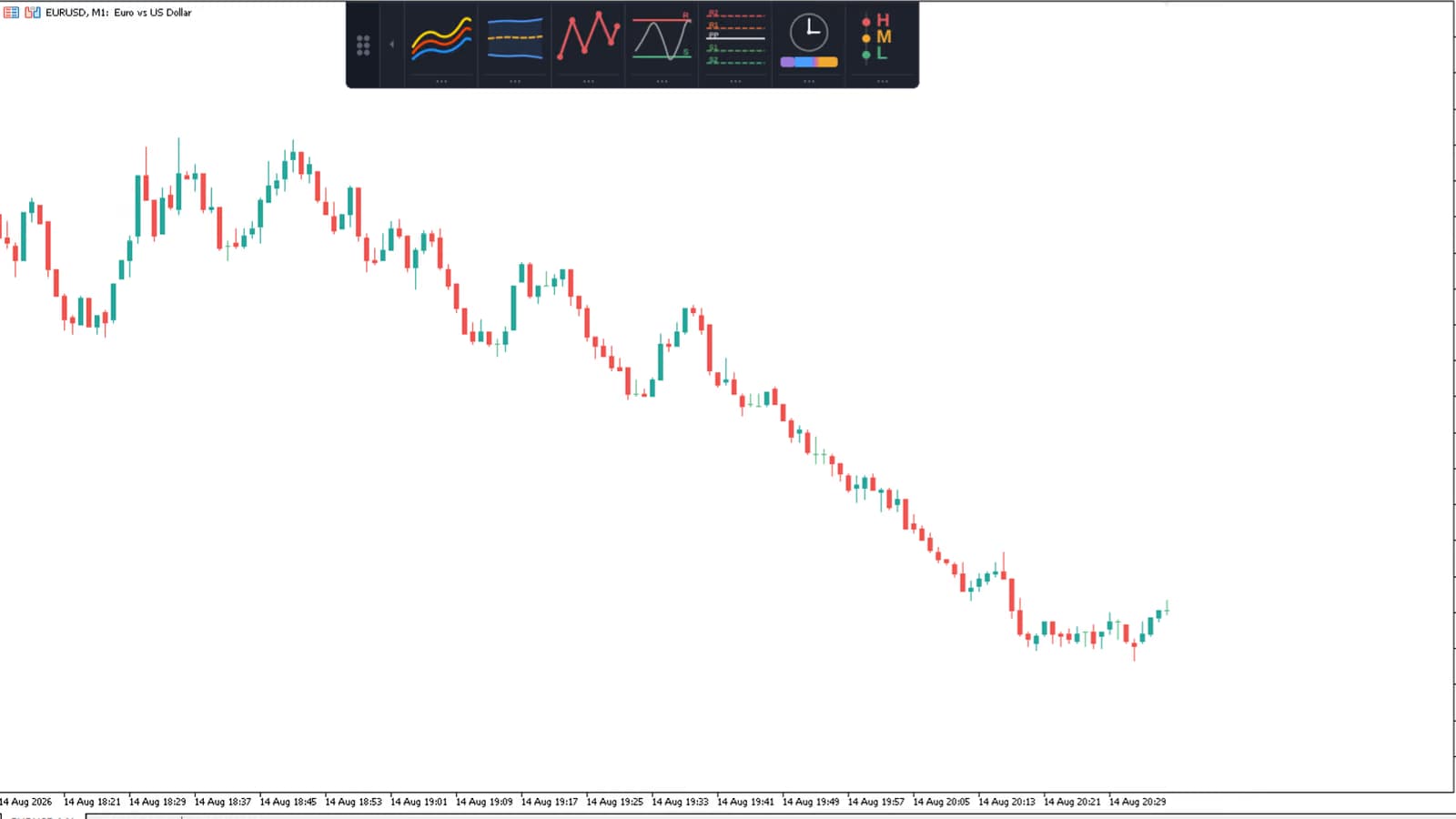
We've watched the same chart happen more than once: a Triple MA sitting on top of Bollinger Bands, on top of a manually drawn pivot ladder, each one opened from its own Inputs dialog, each one with its own timeframe buried three tabs deep. Seven indicators means seven sets of buffers, seven properties windows, and seven places a setting can quietly drift out of sync with the rest.
MetaTrader 5 doesn't stop you from stacking indicators like that. It just doesn't help you manage them once you have.
This post covers ChartDeck PRO, a single indicator for MT4 and MT5 that runs seven chart analysis tools from one dockable icon panel. Click a tool on, drag its settings open, and adjust it on the chart itself. No Inputs dialog is required for day-to-day tuning.
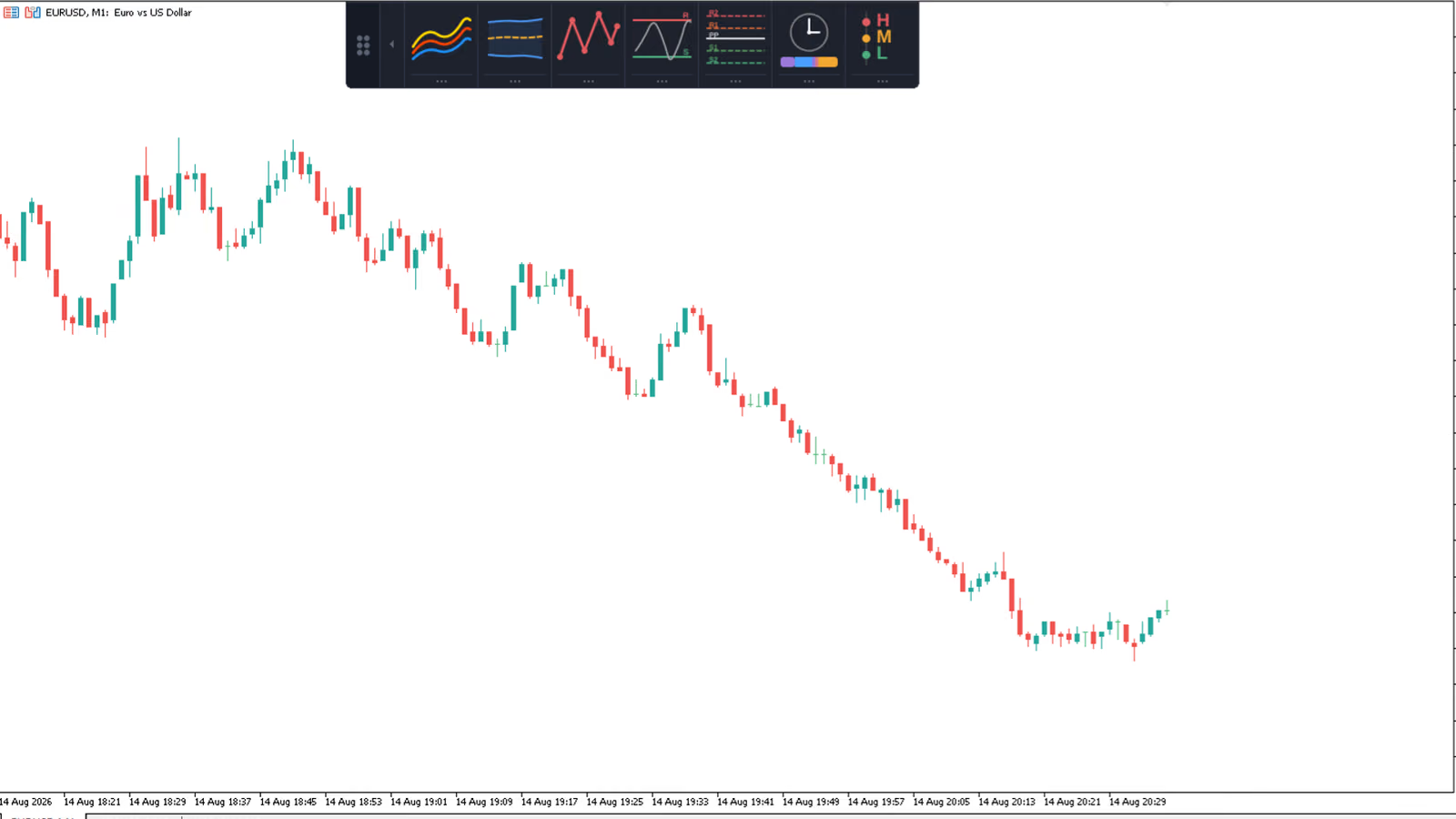
ChartDeck PRO: one panel, seven tools, docked to whichever chart edge stays out of your way.
Contents
Add seven indicators to an MT5 chart and you get seven Inputs dialogs, seven sets of chart objects, and seven independent instances competing for the same limited screen space. Want to check whether your ZigZag pivots line up with a weekly Fibonacci pivot set? That's two windows open side by side, cross-referencing settings by memory.
The clutter compounds with alerts. MT5's native alert system is per-indicator and per-condition, so a trader running moving average crosses, band touches, and pivot alerts together ends up managing three separate alert configurations, none of which know about the others.
None of this is a bug in MetaTrader 5. It's what happens when seven programs, each written independently, get loaded onto one chart. ChartDeck PRO exists because the fix isn't a better indicator. It's fewer indicators.
ChartDeck PRO runs seven chart tools inside a single indicator instance: Triple MA, Bollinger Bands, ZigZag, Support & Resistance, Pivot Points, Sessions, and Daily News. One set of chart buffers instead of seven. One panel instead of seven Inputs windows.
Every tool keeps its own timeframe, its own parameters, and its own alert settings. A tool switched off calculates nothing and draws nothing. It costs no more than not having it installed. Turning a seventh tool on never means paying the performance cost of seven separate indicator programs, because only the enabled ones actually run.
The panel is the control surface for all of it. It appears the moment ChartDeck PRO is attached to a chart, ready to dock to any edge.
The panel is a row of icons, one per tool. Click an icon and that tool switches on or off. Nothing else changes. No dialog opens, no chart redraw delay, no confirmation step.
Drag the panel to the left, right, top, or bottom edge of the chart and it docks there. When screen space matters more than visibility, collapse it to a thin strip with one click and expand it again when needed. Icon size, colour theme, button text, and checkbox visibility are all configurable from the indicator's Inputs on first attach. After that, the panel is the only surface you touch.
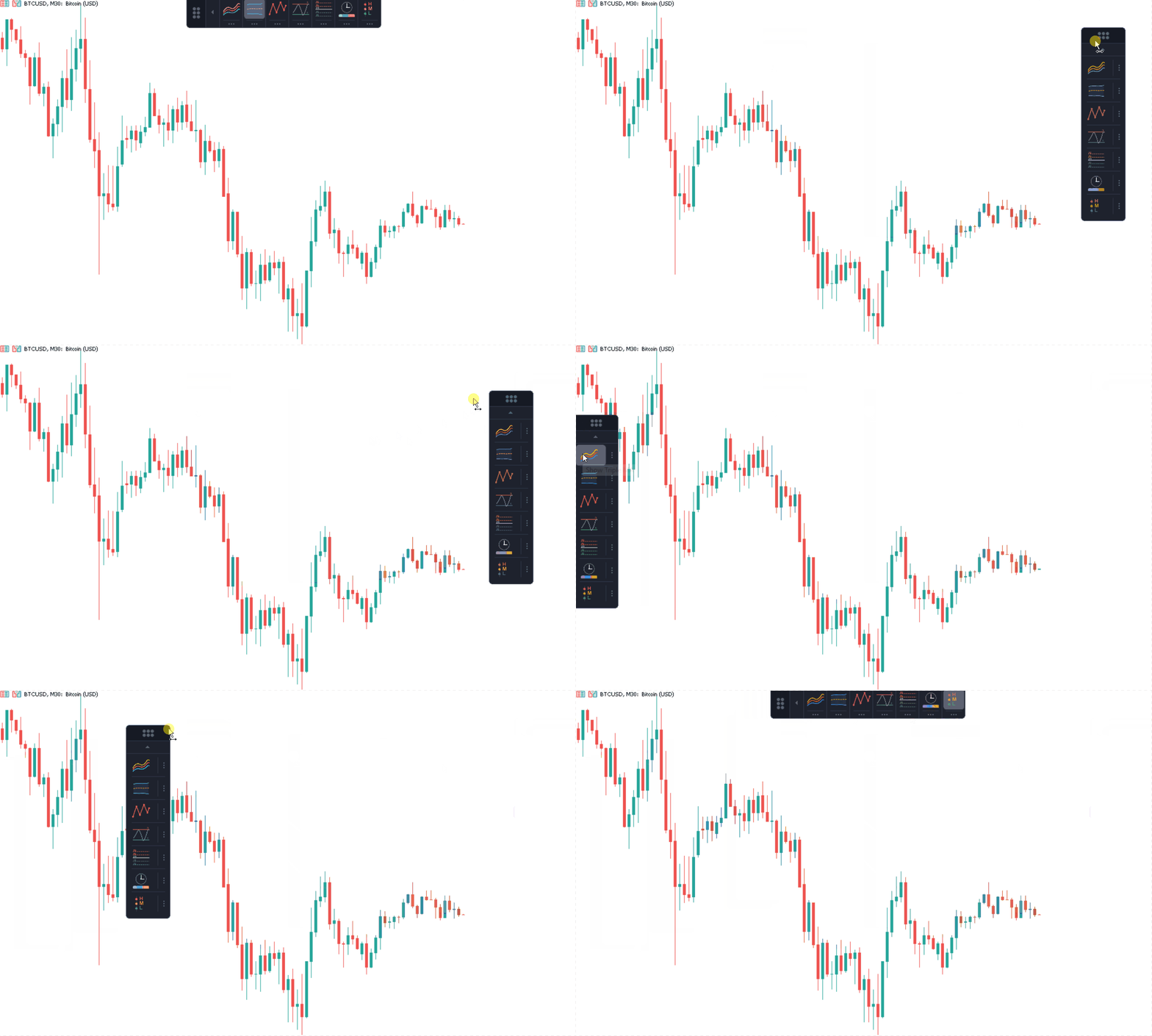
Dragging the panel to a chart edge: it docks and stays there until you move it again.
Each tool below runs independently inside ChartDeck PRO. Switch on the ones you need for the current chart; the rest stay dormant.
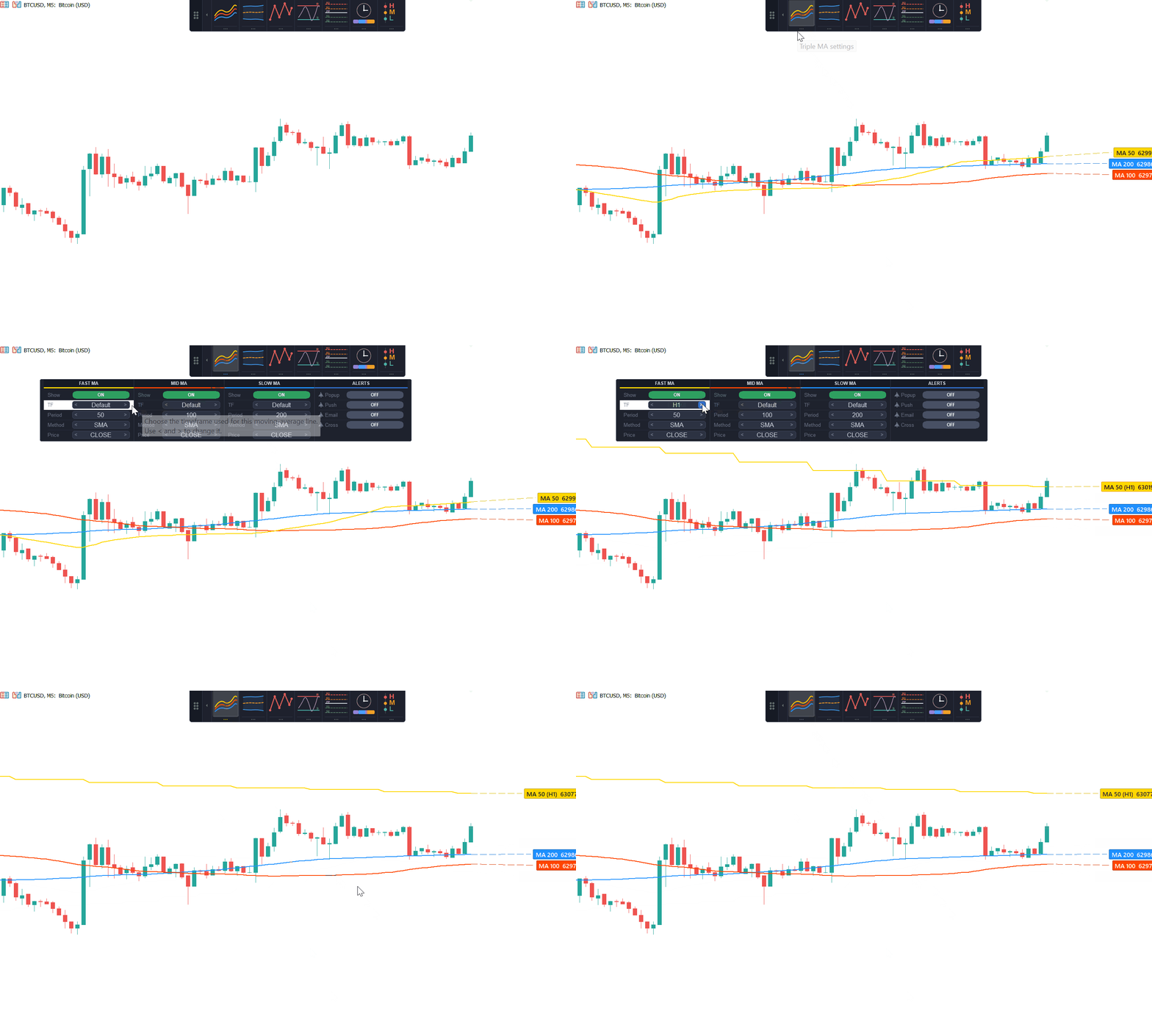
Three moving averages, each with an independent period, timeframe, method, and applied price. Any single line can be hidden while the other two keep running, and cross alerts follow whichever lines are currently visible across all three pairs.
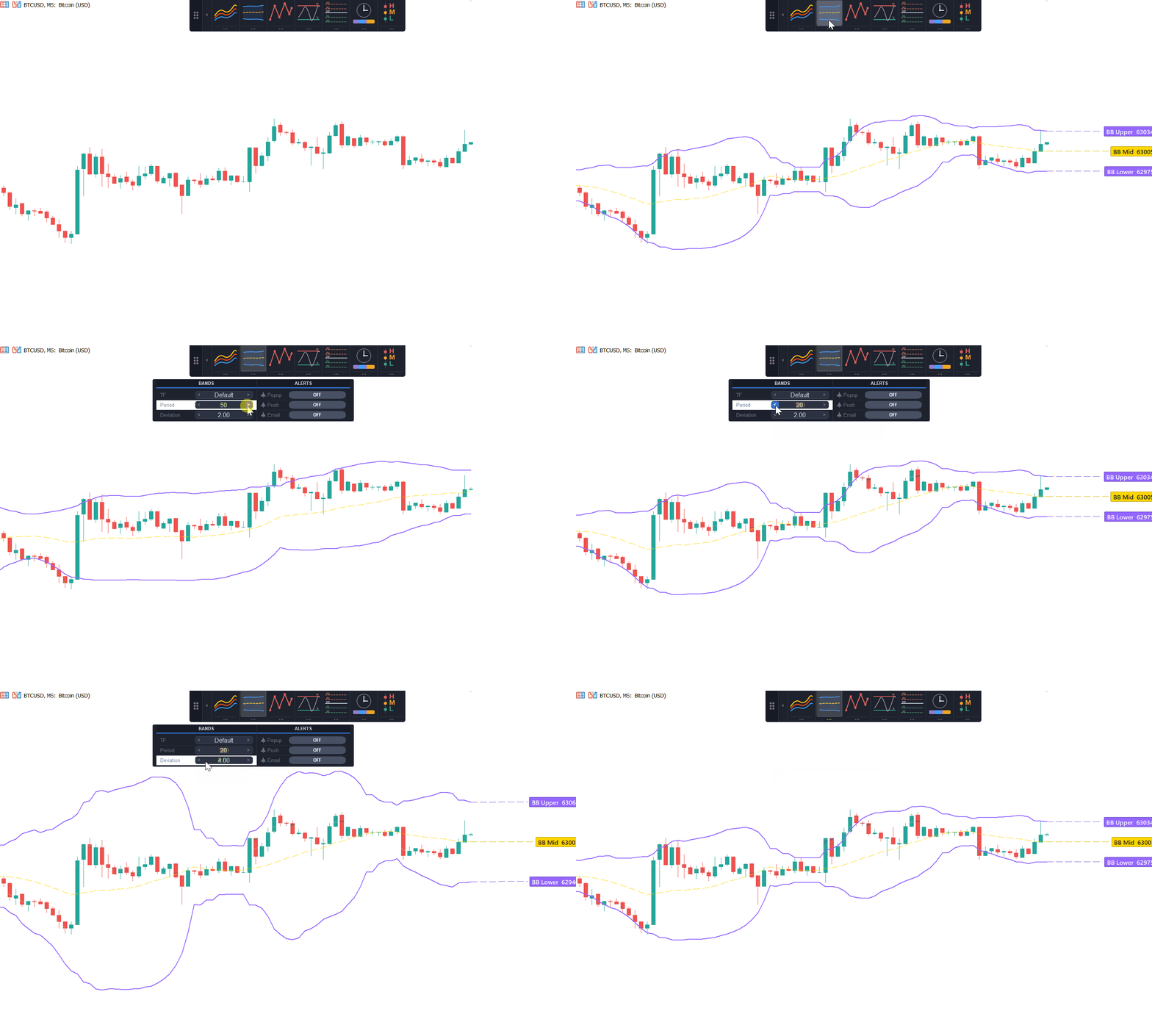
Upper, middle, and lower bands, each with its own period, deviation, and timeframe (including a timeframe set higher than the chart itself, for reading volatility from a higher-frame context while trading a lower one). Alerts fire the moment price touches either band, a technique we cover in more depth in our Bollinger Bands trading guide.
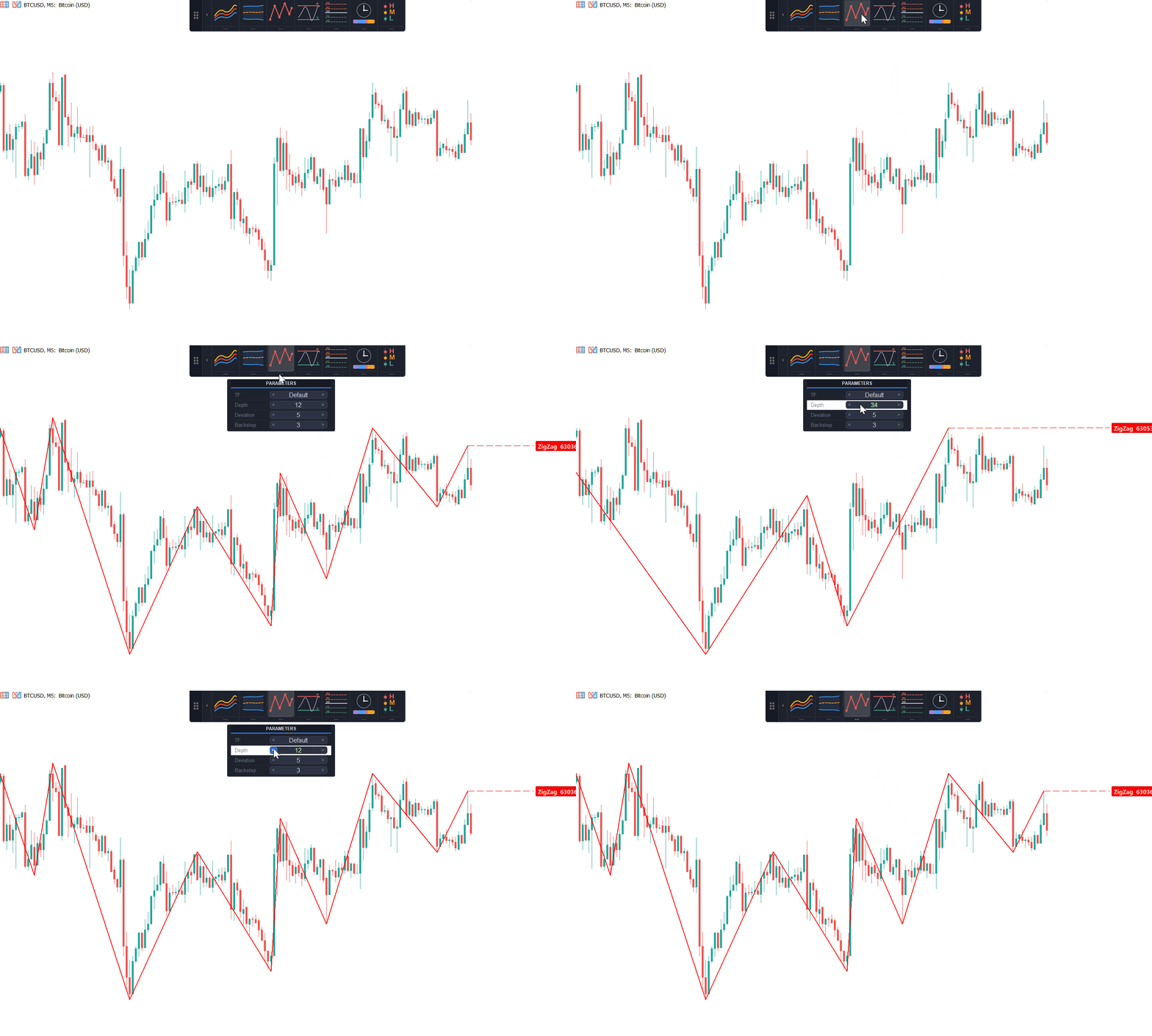
Swing structure calculated from depth, deviation, and backstep. No separate indicator file, no iCustom call from another EA needed to read it. Completed legs are final and never repaint. Only the current leg, the one still forming, can still move, which is true of every swing-detection method and not a quirk of this one.
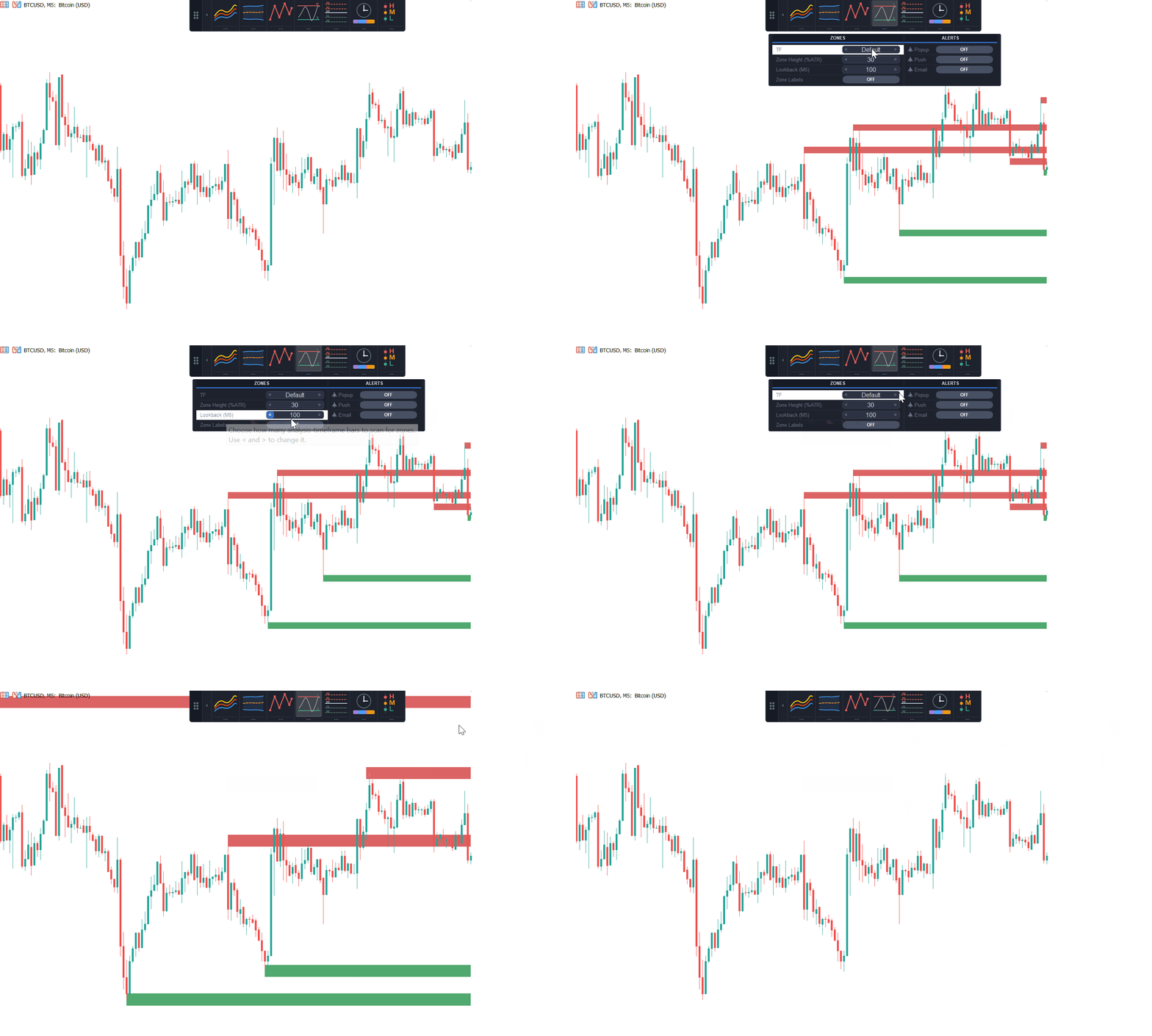
Zones derived from the ZigZag structure and scaled by ATR, so one height setting works across both a quiet major pair and a volatile index. Zones rank by how many times price has tested them, lookback is measured in bars of the analysis timeframe, and zone labels are optional. If you want the mechanics behind zone-from-swing detection, we walked through the same underlying method in our ZigZag support and resistance zones piece.
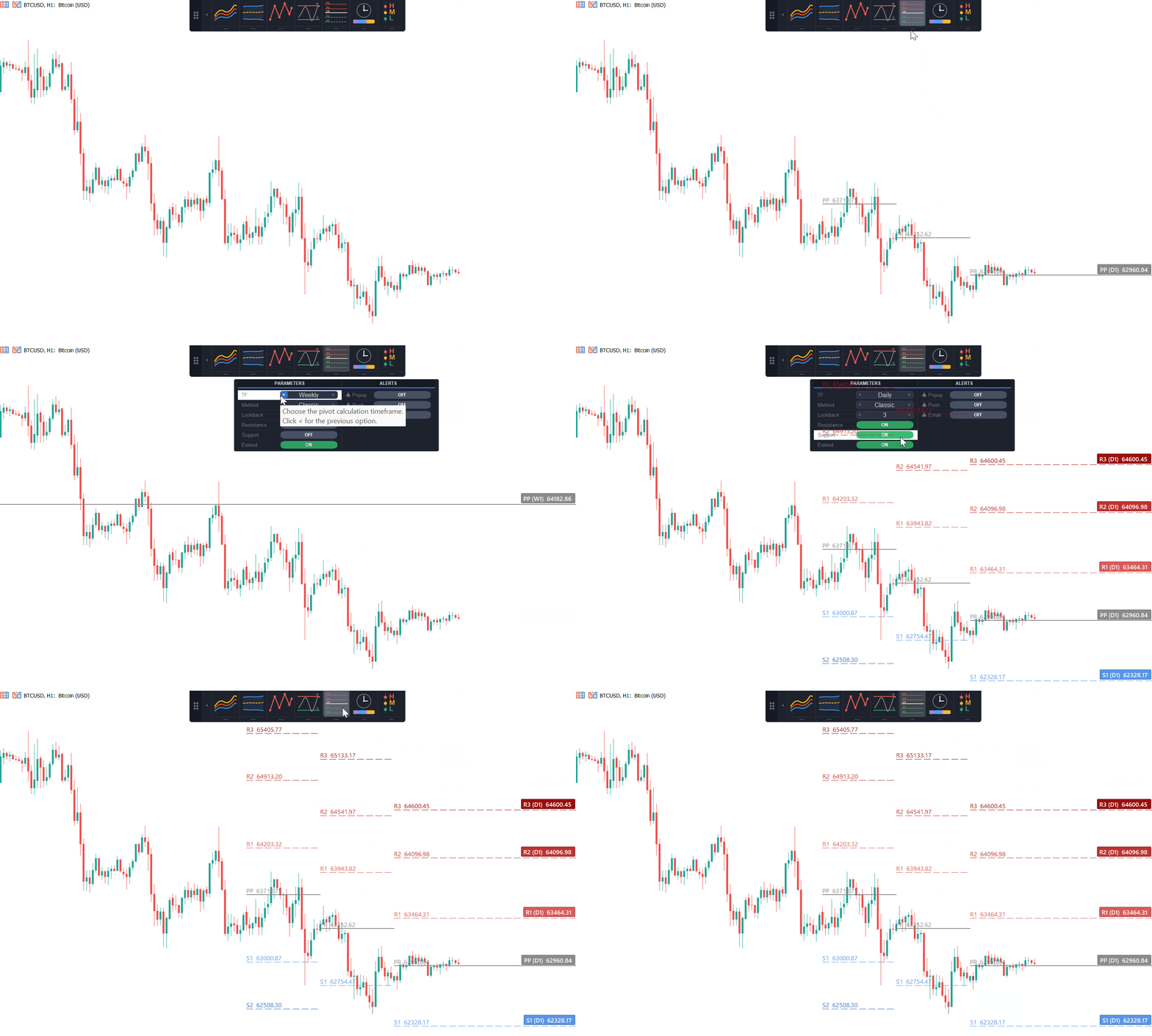
Daily, weekly, or monthly pivots in Classic, Fibonacci, Camarilla, Woodie, or DeMark form. Up to fifty historical periods can be shown at once, support and resistance visibility toggle independently, and the current period's levels can extend to the chart's right edge. For how to actually trade off these levels, see our guide to trading with pivot points.
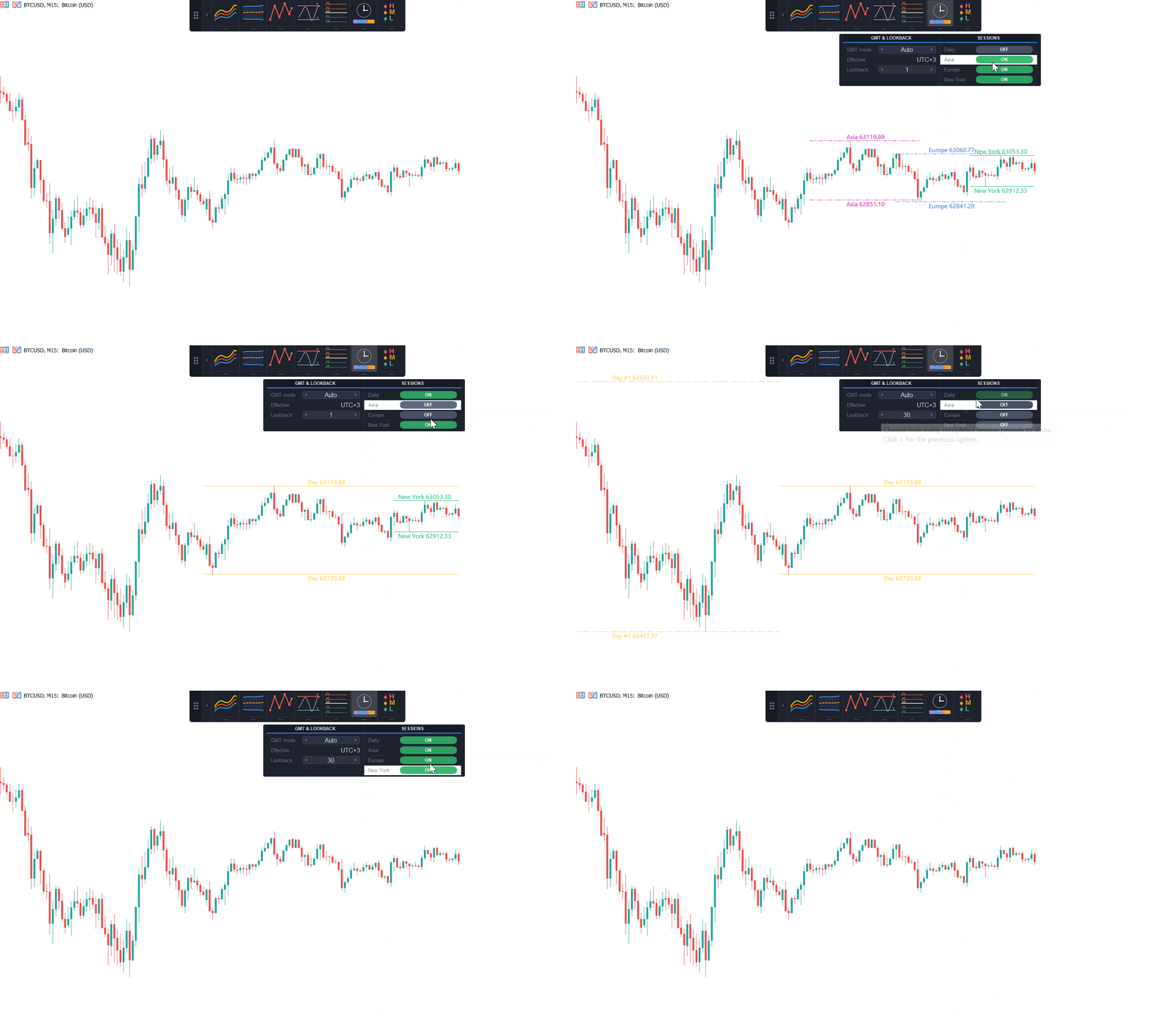
Asia, Europe, and New York session highs and lows, with a broker-GMT offset that can be set automatically or by hand. Choose how many past sessions stay visible, and optionally add the daily high and low alongside them. We cover why these levels matter for timing entries in our session high/low trading guide.
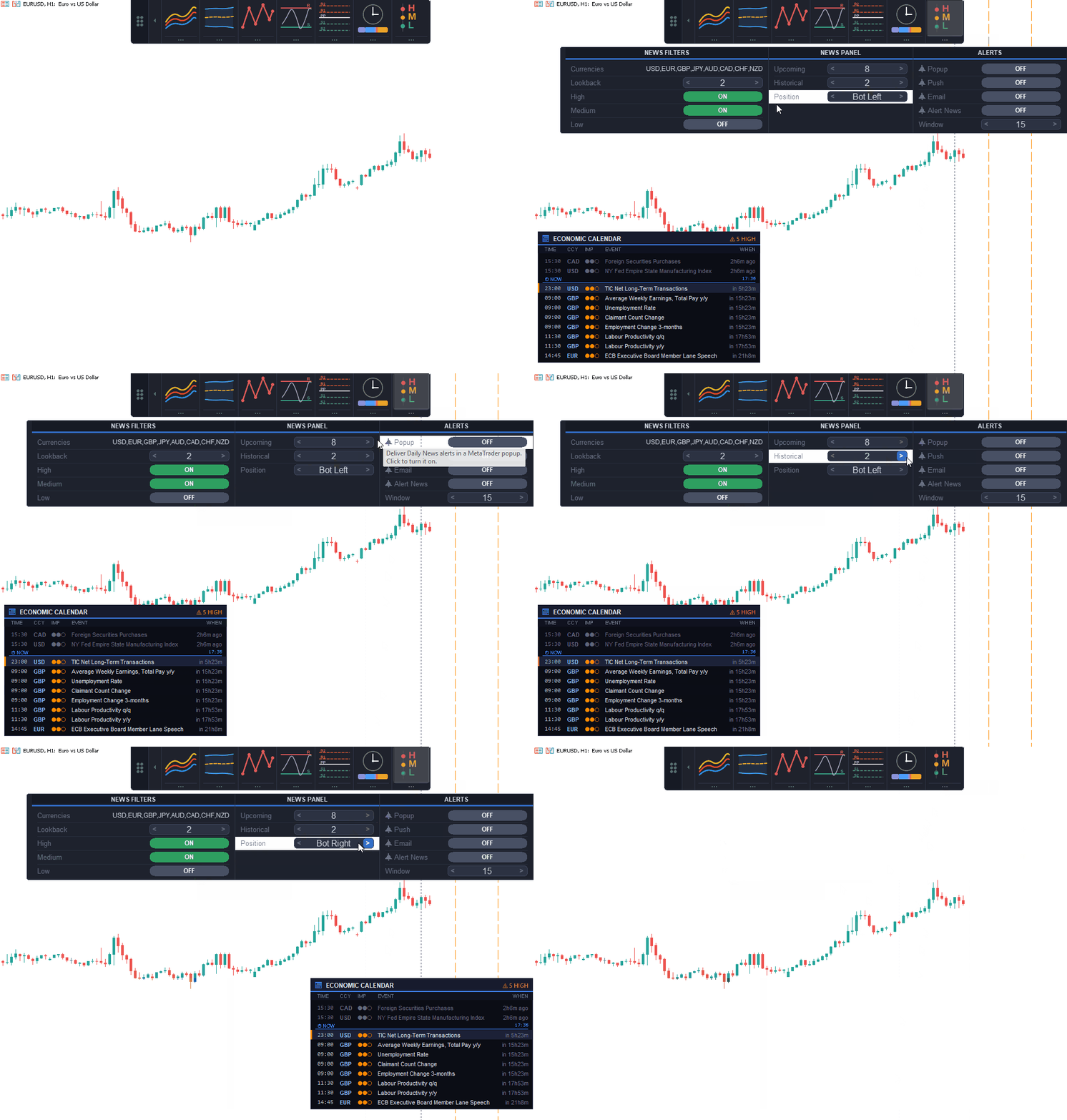
MT5 uses MetaTrader's built-in economic calendar. MT4 reads a local calendar feed maintained by the included FxTT-NewsFeed companion EA because MT4 indicators cannot use WebRequest. Both editions draw events as vertical lines with an on-chart panel, currency and impact filters, a countdown, and a configurable number of rows.
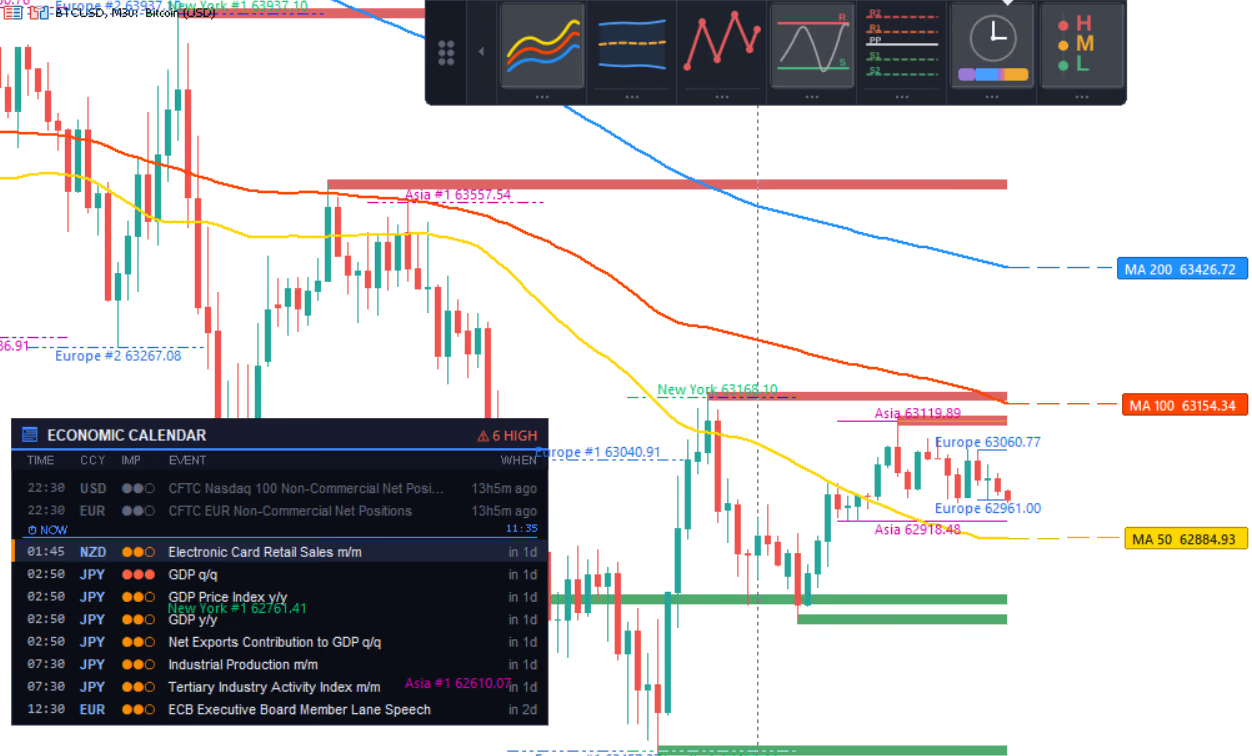
Triple MA, Sessions, Support & Resistance, and Daily News running together on one chart, one indicator instance.
Below each icon sits a settings strip. Open it and every parameter for that tool becomes a stepper, an inline toggle, or a read-only pair, laid out horizontally so nothing is hidden behind a scroll. A boolean is always a single clickable field, never split across a checkbox and a separate label the way MT5's native Inputs tab often does it.
Every control carries a tooltip. When something is locked, the tooltip explains why before you click it, not after. A period field greyed out because the timeframe doesn't support it says so on hover.
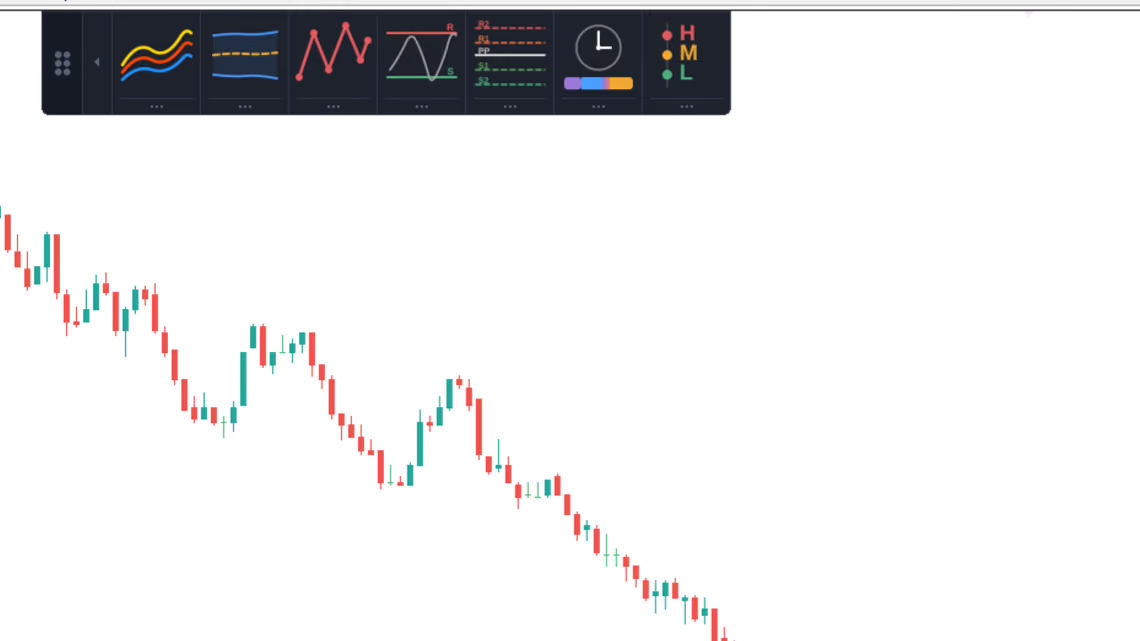
Stepping timeframes, periods, and filters from the drawer, without reopening the Inputs dialog.
Each tool arms its alerts independently: popup, push, and email delivery, set per tool from that tool's own Alerts section in the drawer. Moving average crosses and price touches, band touches, support/resistance and pivot touches, and a configurable lead time before a news event: each condition fires once per level per bar, so a single candle sitting on a level doesn't repeat the same message five times.
Push notifications need a MetaQuotes ID configured in the terminal, and email needs the terminal's own mail settings filled in. ChartDeck PRO cannot configure either one. Set them once in the notification options for your MT4 or MT5 terminal.
Chart persistence is on by default. Panel position, docking edge, the set of tools left switched on, and every parameter touched in a drawer all get restored the next time the chart opens. Each stored value is checked before use and falls back to its input default if it no longer applies. A saved timeframe that's invalid for a tool doesn't crash the panel; it quietly resets.
Want the exact same setup on a different chart? Save the chart as a template. Panel position, active tools, and every parameter travel with it in one step, which matters more than it sounds like it should the first time a multi-timeframe layout needs to be rebuilt from scratch on a second symbol.
Chart updates are incremental. Only the bars added since the previous tick get recalculated, not the full history on every refresh. A tool that's switched off consumes nothing at all: no buffer allocation, no chart objects, no background calculation waiting for you to turn it on.
No DLL or external library is required. MT5 reads price data, the built-in economic calendar, and broker server time from the terminal. On MT4, ChartDeck reads the local Daily News file while the included FxTT-NewsFeed companion EA makes the anonymous calendar request.
ChartDeck PRO fits traders who already run several separate MT4 or MT5 indicators and want one panel instead of a stack of Inputs windows. Multi-timeframe analysis is where it earns its keep. Every tool has its own timeframe field, so a weekly pivot set or a higher-frame Bollinger Band can run alongside an intraday chart without a second indicator instance competing for the same buffers.
It's not a signal generator. ChartDeck PRO draws standard analysis tools and reports the conditions you configure through alerts. It doesn't open trades, close trades, or modify positions, and it needs no Algo Trading permission to run.
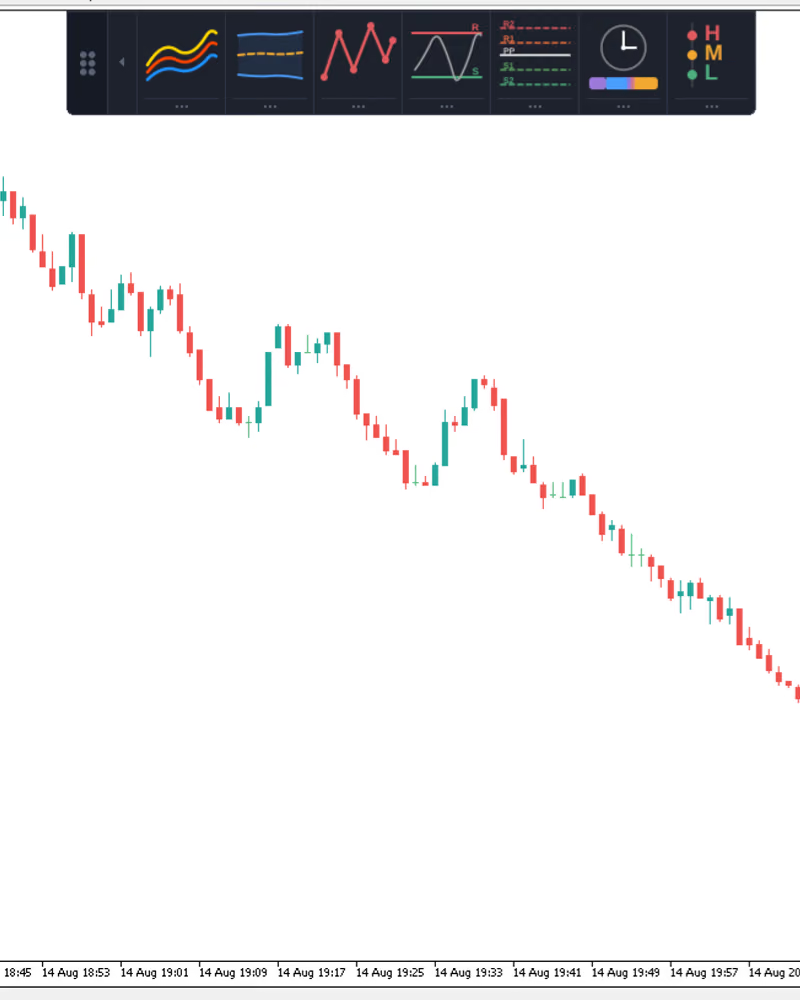
ChartDeck-PRO.ex5 file into the Indicators folder. Restart MT5, or right-click the Navigator panel and select Refresh.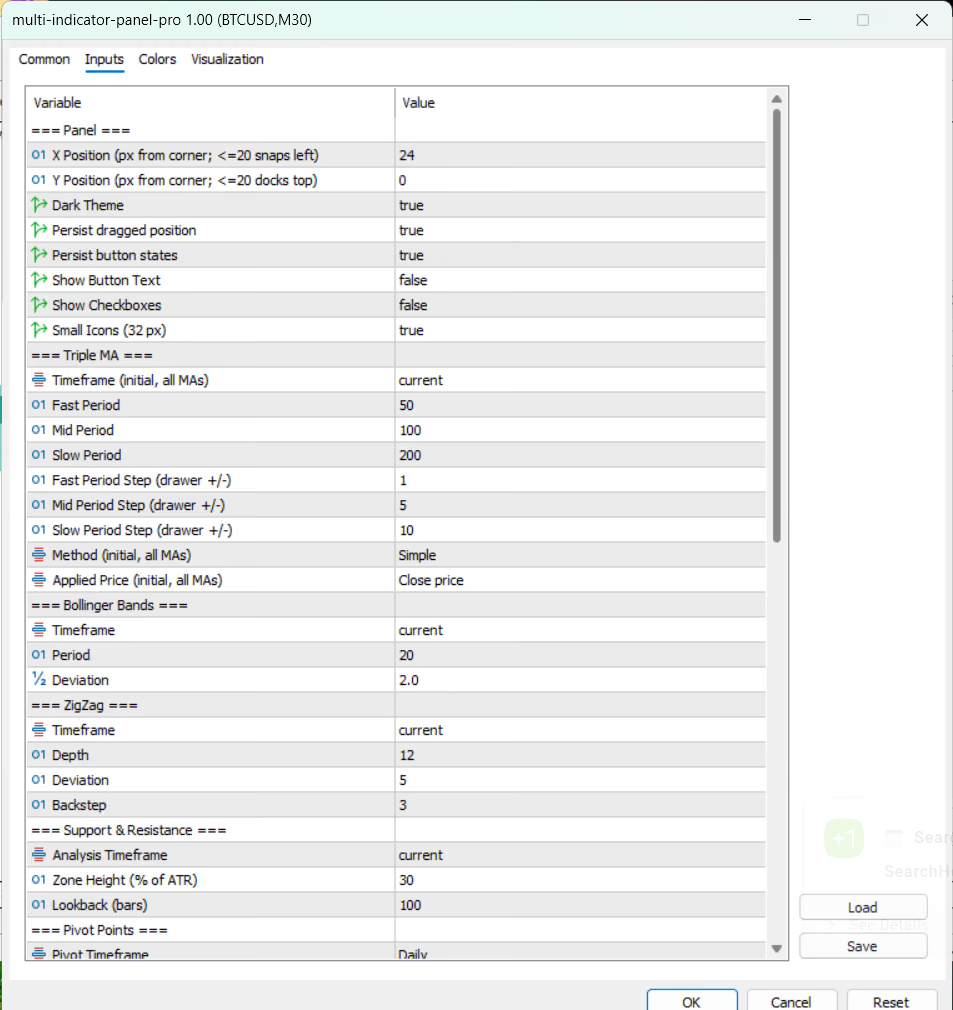
Startup defaults get set once in the Inputs dialog. Day-to-day tuning happens entirely in the on-chart drawer after that.
The MT4 package is a ZIP, not a single .ex4 file, because Daily News needs its companion EA to reach the calendar. Skipping the folder layout is the most common way to end up with a panel that draws six tools and a dead Daily News icon.
MQL4 directory that contains Indicators, Experts, and Files.MQL4 directory and keep its folder structure intact. Copying in only ChartDeck-PRO.ex4 isn't enough: Daily News requires the included FxTT-NewsFeed companion EA, and all seven runtime icons must stay under Files/FXTT/ChartDeck-PRO/images/.FxTT-NewsFeed to one dedicated, otherwise unused chart. MT4 allows only one EA per chart, so don't drop it onto a chart already running a trading EA. One running News Feed EA covers every ChartDeck PRO instance in that terminal; a second terminal needs its own EA, its own internet access, and its own allowlist entry.https://calendar.forextradingtools.eu/. The EA's request is anonymous: no account ID, query parameters, or trading logic attached.FxTT-NewsFeed, then attach ChartDeck-PRO to the charts you want it on.A red dot on the Daily News icon flags a feed problem — no News Feed EA attached, a blocked WebRequest URL, stale data, or a local file MT4 can't read — while the rest of the panel keeps running normally.
No. It draws the seven analysis tools and reports the conditions you enable through alerts. Placing, closing, or modifying trades is not something it does.
One. All seven tools run inside a single ChartDeck PRO instance, sharing one set of chart buffers instead of stacking seven separate programs.
Yes. Every tool has its own timeframe field, and it can be set to any period at or above the chart's own timeframe.
Completed swing legs are final and don't change. The current, still-forming leg can still move until its bar closes, which is true of any swing-based method, not a quirk specific to ChartDeck PRO.
Yes. Choose the package for your platform. The MT4 package includes the ChartDeck indicator, the FxTT-NewsFeed companion EA required by Daily News, and the runtime icons. The MT5 package contains the .ex5 indicator for MetaTrader 5.
ChartDeck PRO is available for MetaTrader 4 and MetaTrader 5. A one-time purchase includes the selected platform license, updates, and support for 12 months from purchase. Check the product page for current pricing.
A 60-day money-back guarantee applies: if ChartDeck PRO doesn't perform as described on your platform, a full refund is available within 60 days of purchase, no questions asked.
Seven indicators, seven Inputs dialogs, seven places for a setting to drift. Or one panel that docks to an edge and stays out of the way until you click it. Attach ChartDeck PRO once, switch on the tools this chart actually needs, and leave the rest dormant.
Trading ToolsTrendline PRO, a new MT5 Expert Advisor for visual traders — draw entry, breakout and close lines on the chart and let the EA execute them.
 Trading Tools
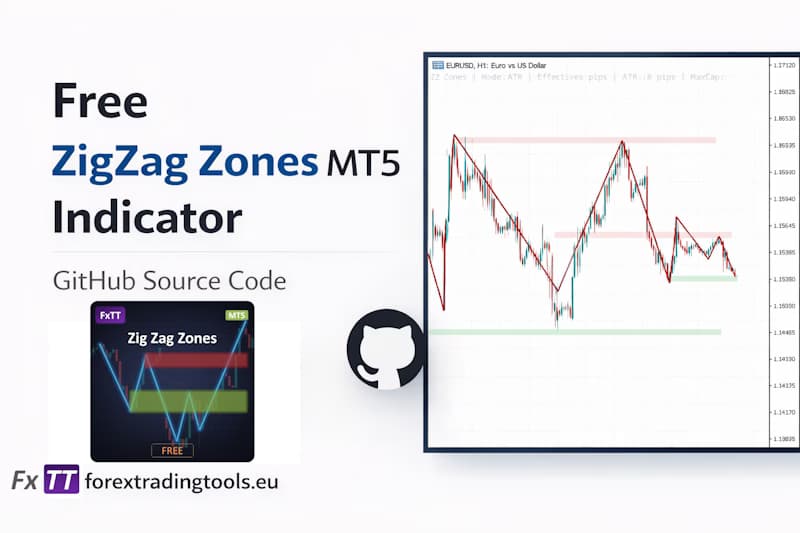
Draw MT5 support and resistance zones automatically from ZigZag pivot clusters — free open-source MQL5 indicator with ATR-adaptive sizing.
 Trading Tools
If you use MetaTrader, you know the struggle. You run a backtest. You export the report. What you get is a messy HTML file that looks like it was designed in…